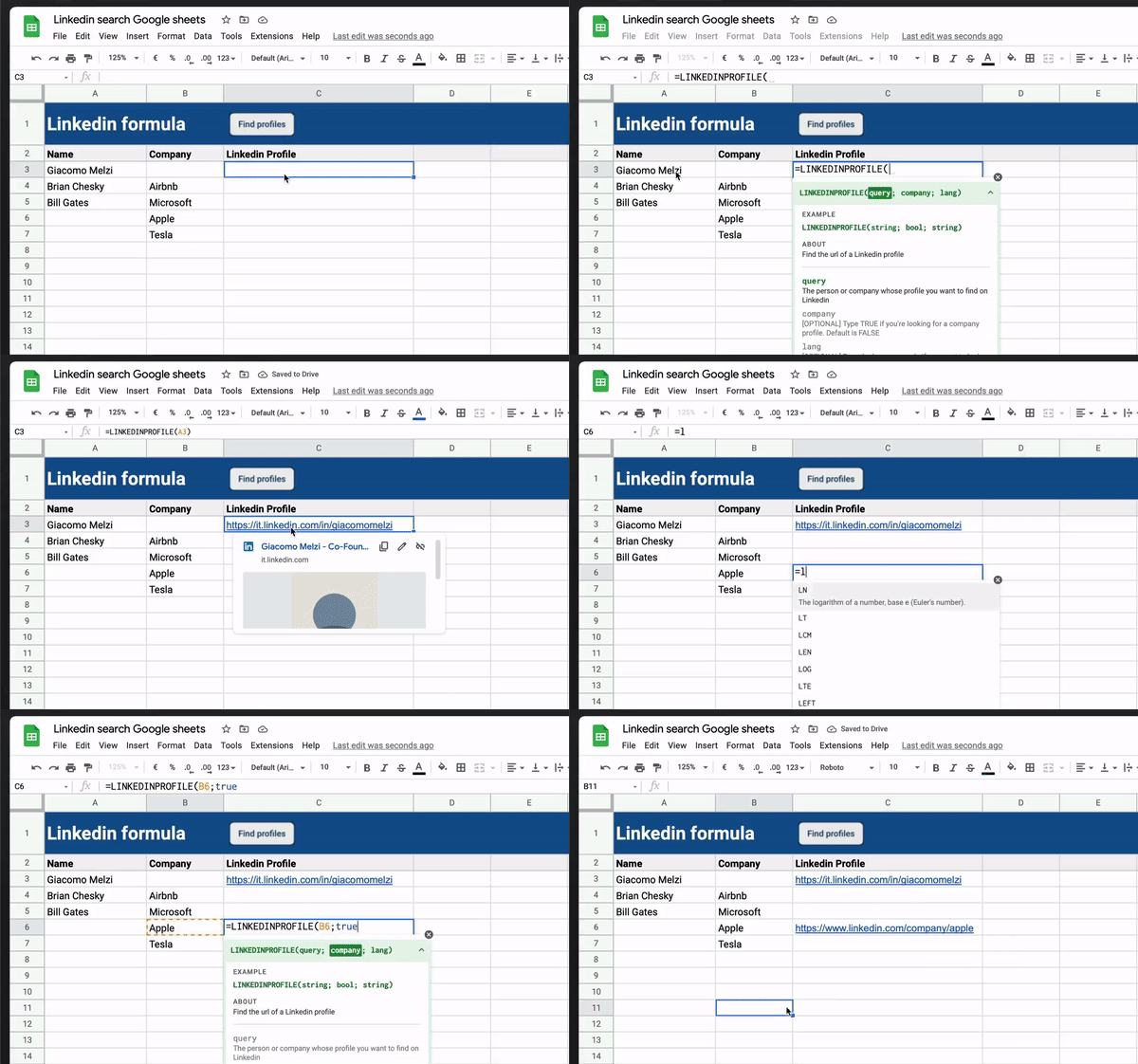
Some time ago, I made a custom Google Sheets formula to automatically get the Linkedin profile of a person/company. It can be helpful to anyone using Google Sheets as a CRM or recruitment, product feedback, or marketing tool. It saved me a lot of boring copy/pasting, so hopefully, it can save some time for you as well
Interesting project from Giacomo Melzi that uses the Google Custom Search API to search LinkedIn for personal and company profile pages. As noted by Giacomo:
Since Linkedin profiles are behind a login (you have to be logged in to check someone’s profile), the formula relies on a workaround. The script performs a domain-constrained search via the Google Custom Search API.
That’s something anyone can do manually in a standard Google search. Just try adding site:{domain} before your search query, and your results will be filtered by domain.
This technique can be used on other sites that are behind a login but indexed by Google. A couple of important limitations to be aware of, in particular, free quota limits. Check out the source post for more details and the code to run this yourself.
This is the first of a three-part post, where we’re going to look at how you can create an appointment system using Google Forms and Sheets and with the use of Apps Script, how you it will update the available times on the forms and how it will send automate confirmation emails to those making the appointments. I’ve used this system for parents evening meetings, but it could be adapted for any area that need appointments.
This series of posts from Baz Roberts details an appointment booking system created in Google Sheets and Forms. There is a lot of details, tricks and tips across the post series so well worth spending the time to unpick what has been shared.
In ‘Merging sheets from multiple sources and encrypting selected columns’ I published some code for selectively copying columns from multiple input spreadsheets/sheets to create summary sheets, and optionally encrypting columns. The idea was to distribute the same sheet to multiple people, along with private key(s) to decrypt columns to which they should have access. This seems a pretty handy thing to make into an Editor Add-on. I’m too impatient and life’s too short to bother getting into the Add-on publishing process, so I haven’t officially released this one personally, but here is a fully functional decryption Add-on that any of you are welcome to fiddle with and publish yourself.
Having previously featured some of Bruce Mcphersons previous posts on encrypting/decrypting Google Sheets data it seems fitting to share the post containing the final add-on. Even if you are not interested in the add-on’s functionality this post can still be worth a look to see how Bruce structures an add-on and uses Vue and Vuex to create the UI rendered with HTMLService.
Generate dynamic Open Graph images for your website with Google Sheets without requiring Puppeteer. All pages on your website can have their own unique Open Graph images created from a Google Slides template.
As explained by Amit Agarwal Open Graph images are included as a feature image on social media sites when the link is shared. You can use static images but some sites like Github dynamically create an image that includes additional information.
For example, if you were to share the link to the Google Workspace Solutions Github repo on Twitter an image is automictically displayed containing information like the number of contributors, issues, stars and forks:
To generate these images often a headless browser solution like Puppeteer is used. In this example from Amit he shows how a Google Slides template and a little Google Apps Script can be used to batch create similar open graph images.
Google Apps Scripts is incredibly powerful and enables complex systems to be built on top of Google Apps. It can be a great choice when you need to quickly prototype an idea or design a solution that’s customizable by non-technical users.
In this article, I will walk through a simple example of building a “Slot Booking System” using Google Sheets, Google Calendar, HTML, Tailwind CSS and Google Apps Script.
Nice little Apps Script project shared in this post using Google Calendar and a published web app, making it possibly a nice starter project for something bigger.
A framework for thinking about whether you should automate a repeatable task in Google Sheets with scripts or not
Ben Collins provides some great advice on when you should think about automating tasks in Google Sheets. Click through the source link at the bottom for the full post for some great tips.
A graphic that stood out for me was the XKCD comic strip below.
… the math didn’t quite add up in my head so I double checked
Google Add-on to bulk rename Google Drive files quickly and easily in a given folder. You define exactly what you want to search for in the file name and the text to replace it with. Includes instructions and demo video.
You can improve the performance of Google Sheets and speed up calculations.
Via Sourabh Choraria (@schoraria911) we picked up this tweet from
Michael Avrukin who is working on the Google Sheets help center documentation:
Hi there dedicated #sheets users, we are starting to work on our help center content – here is our first article in the new format. I’ll appreciate thoughts / feedback anyone has. #googlesheetshttps://t.co/1wJ5abJZiI@benlcollins
The page includes a number of useful tips to speed up Google Sheet calculations and whilst not specifically Google Apps Script related provides useful information on some things you can look out for when your Google Sheet starts getting slow.
This article explains how the filtering criteria of Google Sheets slicers can be reset using a few lines of Apps Script code. Two different approaches are shown. The first one uses the Spreadsheet Service, while the second one draws upon the Google Sheets API using the Advanced Sheets Service. Additionally, some shortcomings and peculiarities of both methods are highlighted.
Kudos to Pablo Felip for taking the time to explore and write-up this post about Google Sheets ‘slicers’. It contains some very useful tips and advice about interacting with them using Google Apps Script.
This is a Google Apps Script library for parsing the form object from HTML form and appending the submitted values to the Spreadsheet.
A common Google Apps Script use case is taking data from a webform and adding it to a Google Sheet. This can sometimes be quite painful has you have to handle the various input types and also write the data to the correct columns. The HtmlFormApp library makes this very straight forward and to illustrate once the library is added to your Apps Script project you can start appending data in a couple of lines of code:
// These are all options.
const obj = {
   formData: formData,
   spreadsheetId: "###",
   sheetName: "###",
   sheetId: "###",
   folderId: "###",
   headerConversion: {"header value of Spreadsheet": "name of HTML input tag",,,},
   ignoreHeader: true,
   choiceFormat: true,
   delimiterOfMultipleAnswers: "\n",
   valueAsRaw: true
};
const res = HtmlFormApp.appendFormData(obj);
console.log(res)
Click through to the source link for more details 👇