AppSheet Custom Steps for Google Workspace Studio

Before we jump in a quick backstory, if nothing else to prove this entire post wasnโ€™t written with Gemini assistance. Just over a year ago I was fortunate to be a Workspace Studio tester (or Flows as was it called then). I was particularly excited by the ability of Extending Google Workspace Flows with Custom Steps using Google Apps Script. As Workspace Studio moved through the Gemini Alpha program to general availability, custom steps disappeared. This is very understandable given Workspace Studio was a new product and Google wanted to make sure users got to access a stable platform. The great news Google has now launched Automate workflows with custom starters and steps, third-party integrations, and webhooks in Workspace Studio.

With custom steps officially back I thought it was revisit an integration I had been experimenting with combining Workspace Studio with AppSheet. The code for this solution is published in the AppSheet Custom Steps for Google Workspace Studio repo and in this post, we’ll walk through:

  1. Why connect Workspace Studio to AppSheet?
  2. A Real-World Example: Intelligent IT Ticket Triage with Gemini & AppSheet
  3. How custom steps are structured in Apps Script (appsscript.json)
  4. The secret sauce: Dynamic schema discovery via Custom Resources
  5. Handling Single vs. Multiple Results: A Two-Tier Approach
  6. Testing & Deployment with Clasp (and the Admin Setting gotcha)
  7. How this project was built using AI coding agents with .agents/ skills

Why Connect Workspace Studio and AppSheet?

Google Workspace Studio is great for automations across Google Workspace allowing you to use Gemini assistance. AppSheet serves as a no-code application platform making it easy to create solutions for your business data. AppSheet Enterprise customers can already use Gemini AI automations to extract, categorise and summarize data, but getting data from a Workspace automation into AppSheet often required intermediary webhooks, custom API scripts, or relying on Google Workspace integrations to Sheets, Forms and Gmail.

With my custom Studio steps, powered by the AppSheet REST API, you have the ability to extend your apps capabilities using the growing list of Workspace Studio starter steps integrating with your AppSheet app to:

  • Add Rows: Directly push structured records into AppSheet tables.
  • Update Rows: Modify records and trigger AppSheet bot workflows in real time.
  • Find Rows: Run AppSheet formula expressions (such as FILTER("Technicians", [On Call] = TRUE)) and feed those records back into downstream Studio steps.

A Real-World Example: Intelligent IT Ticket Triage with Gemini & AppSheet

To see how this works in practice, let’s look at a common scenario, an automated IT helpdesk flow using a slightly modified version of the AppSheet standard IT Ticketing template.

In the IT Ticketing app the schema includes:

  • The Tickets table tracks issues (Issue ID, First Name, Last Name, Email, Description, Symptom, Assigned Tech, Date Created, Resolved).
  • The Technicians table tracks staff (Name, Department, IT Email, On Call boolean, and Can Cover skills: General Issues, Network, Website, Apps). The primary key for this table is IT Email.
  • The Symptoms table stores the allowed categories (Name, Department), used as an AppSheet Ref dropdown in the app.

Rather than forcing users to fill out a form manually or relying on rigid routing rules, we can combine Workspace Studio’s Gmail starter, Gemini steps, and our AppSheet custom steps into an autonomous triage pipeline:

[ Gmail Starter: New Support Email ]
                 โ”‚
                 โ–ผ
[ Step 2 : Find Rows (Fetch On-Call Technicians) ]
                 โ”‚
                 โ–ผ
[ Step 3: Find Rows (Fetch the apps Symptoms list) ]
                 โ”‚
                 โ–ผ
[ Step 4: Extract (Gemini extracts the required data for our app) ]
                 โ”‚
                 โ–ผ
[ Step 5: Add Rows (Create Ticket with Assigned Tech) ]

Step-by-Step Flow Breakdown

  1. Starter (Gmail): Studio listens for incoming emails sent to [email protected] or flagged with [IT Support] in the subject line.
  2. AppSheet Custom Step (Find Rows):
    • Studio queries the Technicians table with the selector:FILTER("Technicians", [On Call] = TRUE)
  3. AppSheet Custom Step (Find Rows):
    • Studio queries the Symptoms table for the current list
  4. Gemini Extract (Smart Triage):
    • Studio passes both the cleaned ticket details, the on-call technician records and our apps symptoms list to Gemini:
  1. AppSheet Custom Step (Add Rows):
    • Studio inserts the new record into Tickets.
    • The step outputs addedRow, immediately exposing newly generated fields (like Ticket ID or calculated dates) for the rest of the flow.
 [
   {
     "Name": "{{Step 1.Starter.Sender Display Name}}",
     "Email": "{{Step 1.Starter.Sender Email}}",
     "Description": "{{Step 4.Gemini.Description}}",
     "Symptom": "{{Step 4.Gemini.Symptom}}",
     "Assigned Tech": "{{Step 4.Gemini.IT Email}}"
   }
 ]

This pattern demonstrates the true power of combining Workspace Studio and AppSheet. Studio orchestrates Workspace events and AI reasoning, while AppSheet provides validated, related business data.


The Anatomy of a Workspace Studio Custom Step

Under the hood, a Workspace Studio custom step is an extension of the Google Workspace Add-on architecture defined in appsscript.json.

Each step declares its inputs, outputs, and two primary Apps Script callback functions:

  1. onConfigFunction: Renders the configuration card displayed in the Studio sidebar when a user selects your step.
  2. onExecuteFunction: Receives input variable bindings at runtime, executes the business logic, and returns output variables back to the flow.

Here is an extract from appsscript.json defining the “Add Rows” step, featuring both bulk JSON outputs and the Dynamic Custom Resource (addedRow):

{
  "id": "appsheet_add_rows",
  "state": "ACTIVE",
  "name": "Add Rows in AppSheet",
  "description": "Adds one or more rows to a specified AppSheet table.",
  "workflowAction": {
    "inputs": [
      { "id": "appId", "cardinality": "SINGLE", "dataType": { "basicType": "STRING" } },
      { "id": "accessKey", "cardinality": "SINGLE", "dataType": { "basicType": "STRING" } },
      { "id": "tableName", "cardinality": "SINGLE", "dataType": { "basicType": "STRING" } },
      { "id": "rowsData", "cardinality": "SINGLE", "dataType": { "basicType": "STRING" } }
    ],
    "outputs": [
      {
        "id": "addedRow",
        "description": "The first newly added row with individual column fields.",
        "cardinality": "SINGLE",
        "dataType": {
          "resourceType": {
            "workflowResourceDefinitionId": "appsheet_row_resource"
          }
        }
      },
      {
        "id": "addedRows",
        "description": "The full rows added, including server-computed values.",
        "cardinality": "SINGLE",
        "dataType": { "basicType": "STRING" }
      }
    ],
    "onConfigFunction": "onConfigAddRows",
    "onExecuteFunction": "onExecuteAddRows"
  }
}

Notice that addedRow has a dataType pointing to appsheet_row_resource. At the top level of addOns.flows, we declare this custom resource alongside a dynamic definition provider:

"workflowResourceDefinitions": [
  {
    "id": "appsheet_row_resource",
    "name": "AppSheet Row",
    "providerFunction": "onDynamicAppSheetRowProvider",
    "resourceType": "DYNAMIC"
  }
],
"dynamicResourceDefinitionProvider": "onDynamicAppSheetRowDefinition"

Dynamic Schema Discovery via Custom Resources

One challenge with database integrations in no-code flow builders is usability. Asking users to hand-write raw JSON payloads or use secondary “Extract” steps to parse out field names isn’t straightforward.

Initially, I tried adding interactive buttons in the configuration card (e.g. a “Fetch Columns” button). However, Google Workspace Studio does not currently display interactive CardService action buttons or in-place card replacement widgets.

Whilst it is not possible to dynamically add input fields to a step, you can dynamically expose the outputs using Dynamic Custom Resources. With Dynamic Custom Resources, you can dynamically update the schemas to define individual column variables automatically.

How it Works Behind the Scenes

  1. Design-Time Schema Introspection (onDynamicAppSheetRowDefinition):
    When the user configures the step in Studio (entering their App ID, Access Key, and Table Name), Studio calls onDynamicAppSheetRowDefinition(e). Apps Script queries AppSheet using TOP(FILTER("Table", TRUE), 1) to discover existing column headers, registering each as an individual ResourceField:
function onDynamicAppSheetRowDefinition(e) {
  const resourceDefinitions = AddOnsResponseService.newDynamicResourceDefinition()
    .setResourceId("appsheet_row_resource");

  const inputs = e.workflow?.resourceFieldsDefinitionRetrieval?.inputs || {};
  const appId = inputs.appId?.stringValues?.[0];
  const accessKey = inputs.accessKey?.stringValues?.[0];
  const tableName = inputs.tableName?.stringValues?.[0];

  if (appId && accessKey && tableName) {
    const AppSheet = new AppSheetApp(appId, accessKey);
    // Fetch schema sample (cached for 6 hours to keep editor fast)
    const sample = AppSheet.Find(tableName, [], { "Selector": `TOP(FILTER("${tableName}", TRUE), 1)` });
    if (sample && sample.length > 0) {
      Object.keys(sample[0]).forEach(colName => {
        resourceDefinitions.addResourceField(
          AddOnsResponseService.newResourceField()
            .setSelector(colName)
            .setDisplayText(colName)
        );
      });
    }
  }

  const workflowAction = AddOnsResponseService.newResourceFieldsDefinitionRetrievedAction()
    .addDynamicResourceDefinition(resourceDefinitions);

  return AddOnsResponseService.newRenderActionBuilder()
    .setHostAppAction(AddOnsResponseService.newHostAppAction().setWorkflowAction(workflowAction))
    .build();
}

  1. Step Execution & Caching (onExecuteFunction):
    When the step runs, it executes the AppSheet API operation, caches the row data in CacheService under a unique UUID ("row_find_" + Utilities.getUuid()), and returns a resource reference variable alongside the standard JSON output:
const variables = {
  "firstRow": AddOnsResponseService.newVariableData().addResourceReference(resourceId),
  "foundRows": AddOnsResponseService.newVariableData().addStringValue(JSON.stringify(foundRows)),
  "rowCount": AddOnsResponseService.newVariableData().addIntegerValue(foundRows.length)
};

  1. Runtime Value Resolution (onDynamicAppSheetRowProvider):
    When a downstream step references a chip like Step 2 > First row > IT Email, Studio calls onDynamicAppSheetRowProvider(e) with the resourceId. The provider grabs the cached row and returns the requested column values on the fly.

Handling Single vs. Multiple Results: A Two-Tier Approach

When building steps that interact with databases, you inevitably face a question: What happens if the query returns one row versus ten rows versus zero rows?

In Google Workspace Studio’s currently, custom resources strictly mandate "cardinality": "SINGLE":

“The output variable has a dataType with the property resourceType. The value of cardinality must be SINGLE.”

Because Studio does not yet support repeated arrays of custom resource chips, our custom steps implement a two-tier output design:

StepOutput VariableType & CardinalityBest ForBehavior
Find RowsfirstRowDynamic Custom Resource (SINGLE)Single result / First matchExposes individual column chips (Email, Name, ID, etc.) directly to downstream steps.
foundRowsString (JSON Array) (SINGLE)Multiple resultsContains the full JSON array [ {...}, {...} ] of all matching rows.
rowCountInteger (SINGLE)Conditionals & branchingThe total number of rows found (0, 1, 5, etc.).
Add RowsaddedRowDynamic Custom Resource (SINGLE)Single record addedExposes column chips of the newly created row (useful for generated IDs or computed columns).
addedRowsString (JSON Array) (SINGLE)Bulk additionsFull JSON array of all rows inserted.
Update RowsupdatedRowDynamic Custom Resource (SINGLE)Single record updatedExposes column chips of the updated record.
updatedRowsString (JSON Array) (SINGLE)Bulk updatesFull JSON array of all updated rows.

How Flows Use This in Practice:

  • Single Record Workflows: Use firstRow, addedRow, or updatedRow chips directly in downstream steps (Gmail, Google Docs, Slack, Chat) without any formula or extraction step. If 0 rows match, chips safely resolve to empty strings ("").
  • Multi-Record Collections: Pass foundRows (JSON string) directly into the rowsData input of another step or iterate over the collection using Studio list actions.
  • Conditional Logic: Add a Studio branch on rowCount > 0 to safeguard downstream actions when records might not exist.

Testing & Deployment with Clasp

Because Studio custom steps run on Google Workspace Add-on infrastructure, testing is fast:

  1. Either Copy with Apps Script project or follow the steps to clone the repo and push via clasp:
  2. Install the Test Deployment: Open the Apps Script project, go to Deploy > Test deployments, select Google Workspace Add-on, and click Install.
  3. Use in Studio: Head to studio.workspace.google.com, add a step to any flow, and search for “AppSheet Utilities for Studio”.

[!IMPORTANT] Admin Setting Required for Google Workspace Accounts:
As announced in the Google Workspace Updates, custom steps are OFF by default for Google Workspace accounts.

If you see a lock icon stating “๐Ÿ”’ Access to these steps is restricted by your Workspace admin”, have a domain admin navigate to:
Google Admin Console > Apps > Google Workspace > Settings for Workspace Studio > Custom steps settings
Turn custom steps ON and check “Allow unpublished (test) custom steps”.

AI-Assisted Development with .agents/

An interesting aspect of developing for newly released or evolving APIs like Workspace Studio is that public LLMs often have knowledge cutoffs or hallucinate manifest formats and Card Service specifications.

To build this project efficiently, the repository includes a curated .agents/ directory containing specialized runbooks, rules, and reference specs:

  • Contract Parity: Enforces that input/output IDs in appsscript.json match Code.js execution handlers.
  • Real-time API Adaptation: When testing revealed that Studio sidebar cards don’t render interactive card buttons, the agent used the reference docs to quickly pivot to native Dynamic Custom Resources (dynamicResourceDefinitionProvider).
  • Platform Constraints: Encodes crucial platform invariantsโ€”like the requirement that dataType.resourceType outputs mandate "cardinality": "SINGLE"โ€”saving hours of trial and error.
  • AppSheet Selectors: Pre-validated AppSheet formula expressions (FILTER, SELECT, TOP) for REST API calls.

When working with tools like Gemini Code Assist or AI coding agents, these in-repo skills guide the model to write accurate, production-ready code on the first attempt and navigate rapid API evolutions.

Summary and Next Steps

Having custom steps and starters back in Workspace Studio opens up huge possibilities for developers. Google Apps Script acts as the glue code, letting you build custom integrations for internal systems, specialized SaaS platforms, or databases like AppSheet.

You can find the complete source code and clasp setup instructions on GitHub: ๐Ÿ‘‰ mhawksey/appsheet-custom-studio-step-example
Workspace Studio Updates from Cloud Next 2026: Skills, Agents, NotebookLM and Approvals

Google Cloud Next 2026 in Las Vegas brought a wave of announcements for the Google Workspace. I recently watched the special edition recap featuring Workspace Studio Product Manager, Carlin Yuen, and host Chanel Greco. You can watch the full conversation here on YouTube. For those building solutions and managing integrations, I have broken down the key announcements and what they mean for our community. One caveat is there was no confirmation in the video on when all these new features will be available, however, my sense from reading theย official wrap-up postsย is that many are arriving very soon. In the case of Skills, it appears to be rolling out immediately.

Bringing Automation to the Surface

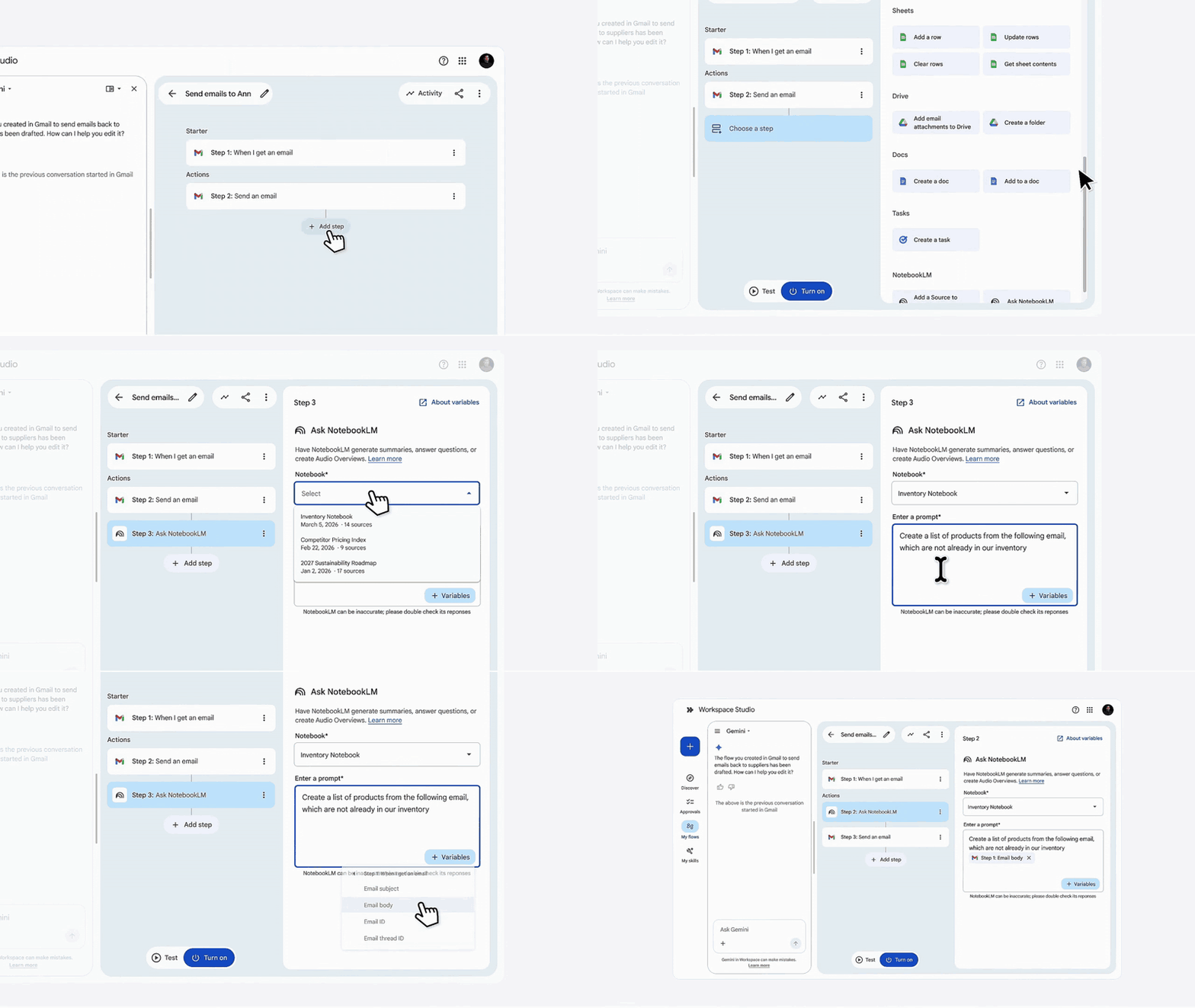
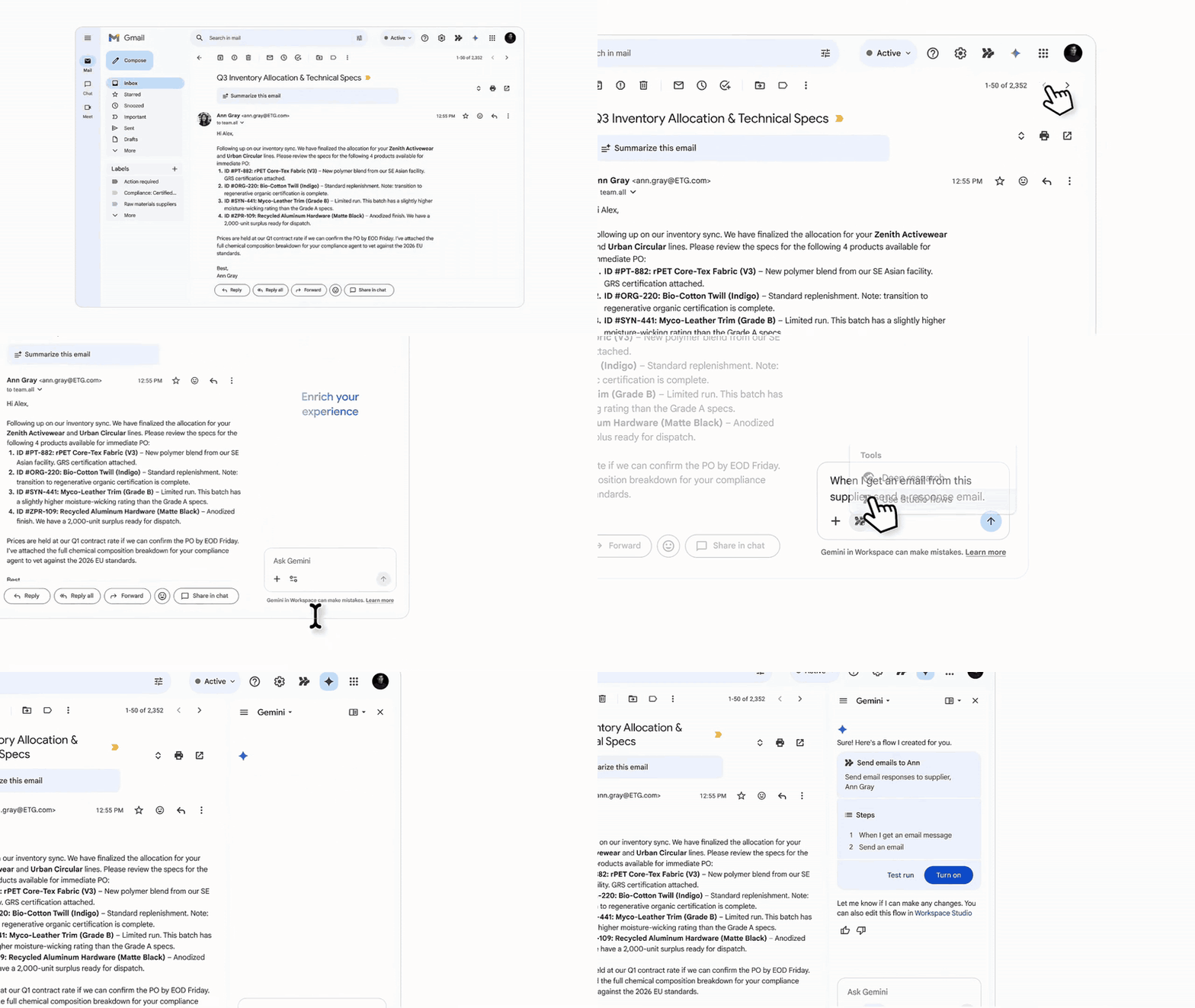
A recurring theme in Workspace is minimising the friction of context switching. To help with this, users will be able toย request and generate automated workflows directly within the Gemini side panelย (01:23). This brings the automation layer directly to the user’s immediate environment, removing the need to navigate away to separate developer consoles.

Image credit: Google

Beyond surface-level generation, the integration paths are expanding. One of the substantial updates is that Workspace users will be able to create flows thatย use NotebookLM notebook to both query and add sourcesย (02:41). This enables automated Q&A and FAQ workflows, with the ability to dynamically add resources to notebooks :0.

Image credit: Google

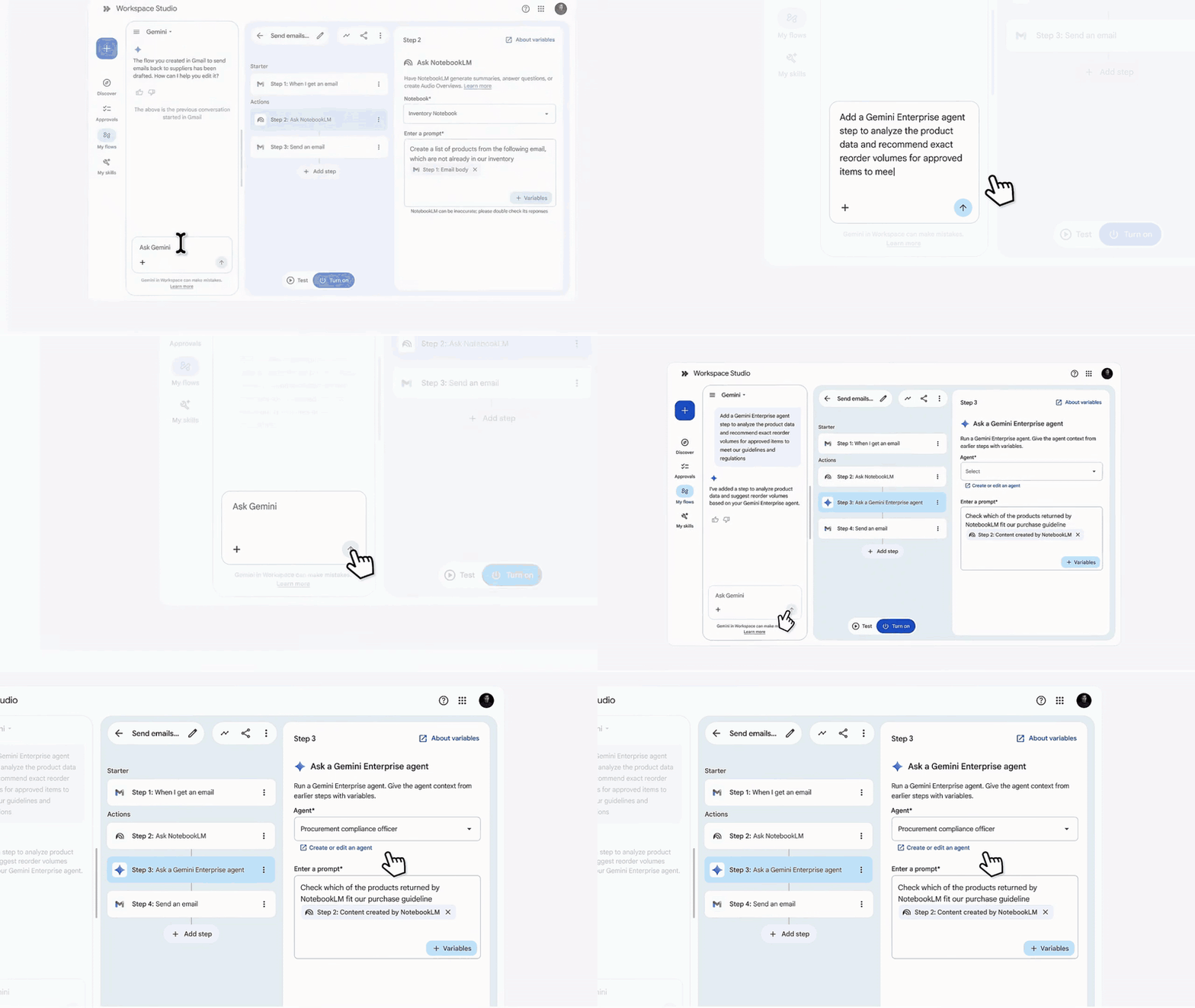
In terms of integration it will also be possible toย use Workspace Studio flows with agents created in Gemini Enterpriseย (04:18). This allows for advanced agentic capabilities, meaning you can construct multi-step flows that query your enterprise data along the way.

Image credit: Google

Customisation and Codified Skills

For the power user and the Workspace administrator, the customisation updates are particularly relevant. We will be able toย build custom triggers and steps using Google Apps Scriptย (06:58) directly within these flows. This bridges the gap between low-code convenience and complex, proprietary logic. If you are integrating with external platforms, there will be new out-of-the-box connectors for services like HubSpot, Salesforce, and Jira. Webhooks are also fully supported for connecting to custom endpoints.

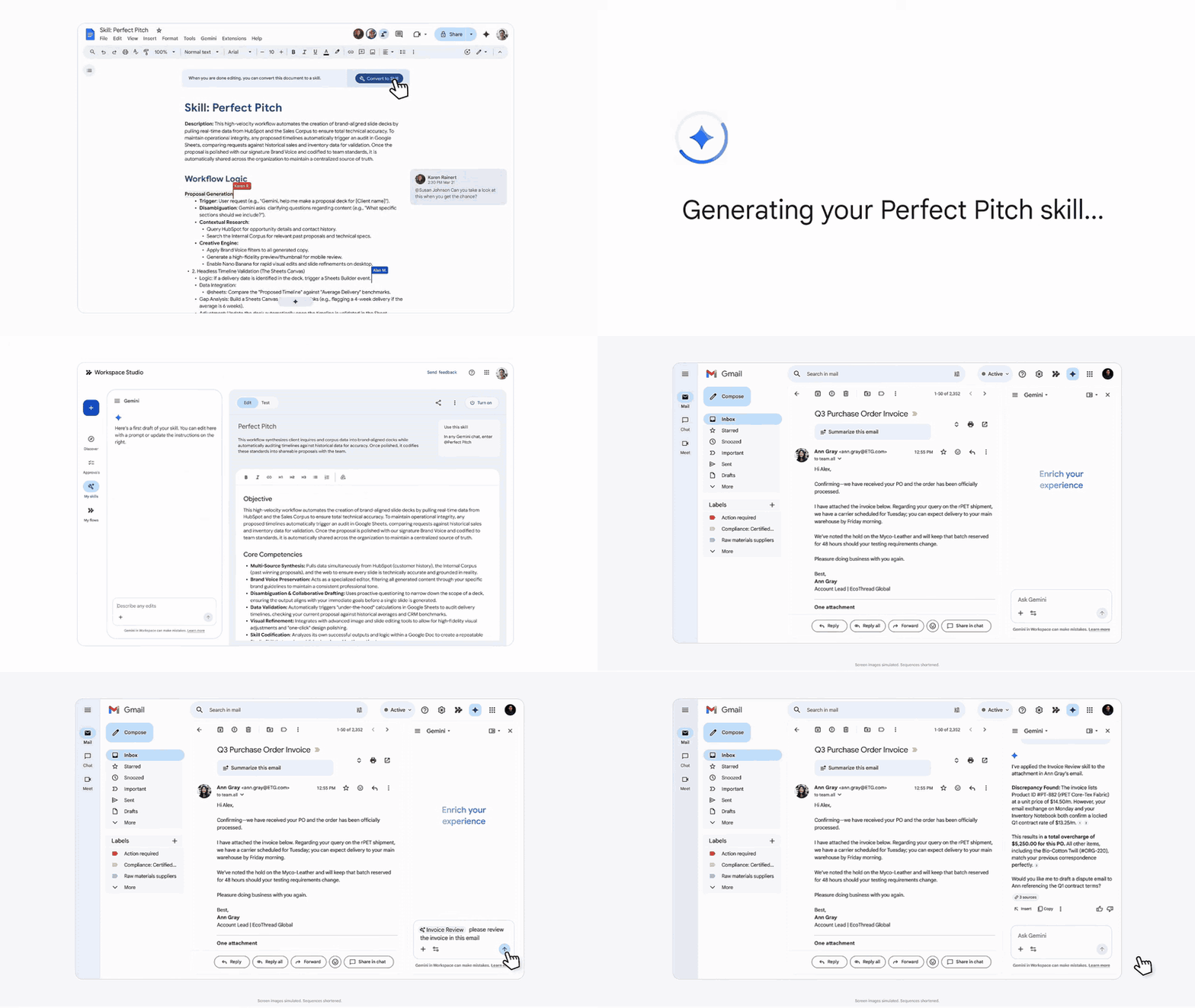
Another really interesting upcoming feature is theย introduction of “Skills”ย (11:03). As we have seen recently discussed on AppsScriptPulse, Skills represent an emerging method for effective agentic automation. Instead of relying on monolithic scripts, this capability allows professionals to codify company guidelines, playbooks, or specialised know-how into reusable, atomic assets.

Image credit: Google

Security, Governance, and Transparency

As we build more autonomous flows that interact with shared resources, including posting to chat spaces and modifying shared Drive folders, this brings security considerations. Thankfully, the new updates include robust security and governance controls. A newย unified Approvals page in Workspace Studioย (08:21) will allow users to review and approve sensitive actions on their data before they execute.

Image credit: Google

For administrators, it looks like there will be a newย management dashboardsย (09:53) that will provide clear visibility to manage agent access and permissions across the organisation.

Image credit: Google

A feature discussed but not shown in the video is users will seeย clear visual badgesย (10:35) indicating when an action was performed by an automated agent. This type of attribution is something I know will be valued by users and necessary for maintaining transparency in an increasingly automated work environment.

If you are interested in learning more about Google Workspace Studio check out theย Google Workspace Studio playlist.

Creating a ‘Knowledge Doc’ for Gemini: Consolidating Google Workspace Flows Documentation

How to build a server-less crawler using Google Apps Script to create a unified knowledge base for AI-assisted development.

The Goal: A Unified Context for Gemini

When building Google Workspace add-ons, particularly those using newer features likeย Workspace Flows, the documentation is often spread across dozens of nested pages. While excellent for browsing, this structure presents a challenge when working with Large Language Models (LLMs) like Gemini.

The primary motivation for this project was to create a single, consolidated “Knowledge Doc” containing the complete technical specification for Workspace Flows. By feeding this unified document into Gemini, I can:

  • Control the Context:ย Ensure the model answers based on the specific, official documentation rather than outdated training data or hallucinated APIs.
  • Accelerate Development:ย Ask complex architectural questions (“How do I build a flow that integrates X and Y?”) and get answers grounded in the full API reference without the latency of multiple web searches.
  • Bridge the Knowledge Gap:ย Work effectively with brand-new products and services that haven’t yet been absorbed into the LLM’s core training set.

This article details how I built the tool to create this documentโ€”a server-less crawler that runs entirely within Google Apps Script. If you are less concerned about the how and more about the end result here is theย [Shared] Google Workspace Flows Guide

The Technical Challenge: Apps Script vs. The DOM

My initial plan was straightforward:

  1. Fetch the HTML of each documentation page.
  2. Parse it into Markdown (using a library likeย Turndownย orย Showdown).
  3. Convert that Markdown into a Google Doc.

However, I hit a major roadblock immediately. Most JavaScript parsing libraries rely on theย DOMย (window,ย document,ย DOMParser). Google Apps Script runs in a server-side environment (similar to a Node.js runtime but without standard packages) whereย no DOM exists. Libraries likeย Turndownย crashed instantly withย ReferenceError: document is not defined.

The Solution: A Hybrid HTML Pipeline

Instead of fighting to make a browser library work on the server, I pivoted to a hybrid approach:

  1. Cheerio for Parsing:ย I used theย Cheerioย library (which parses HTML using pure JavaScript strings, no DOM required) to “clean” the content.
  2. Direct HTML Injection:ย Instead of converting to Markdown (which lost formatting for tables and images), I switched to theย Google Drive APIย which can natively convert HTML files into Google Docs.

This pipeline proved superior because it preserved:

  • Code Blocks:ย <pre>ย tags with specific formatting.
  • Tables:ย Complex data tables rendered perfectly.
  • Images:ย <img>ย tags with absolute URLs were automatically fetched and embedded by Google Drive.

Important Note:ย This script was developed and tested specifically forย Google Workspace Flowsย documentation. Web scraping inherently carries the risk that the target website’s HTML structure may change over time. Other documentation sites will use different CSS classes and HTML structures. While the core logic (crawling + HTML cleaning + Docs conversion) remains valid, you will need to inspect the source of your target site and update the Cheerio selectors (likeย .devsite-article-bodyย orย .devsite-book-nav) to match its specific layout.

Step 1: The Crawler

First, we needed to find all the relevant pages. Traversing the DOM tree proved fragileโ€”class names change, and nesting levels vary.

The robust solution wasย Path Filtering. We fetch the main navigation bar and simply filter for any link that starts with our target root URL.

function extractLinksByPath(html, rootUrl) {
  const $ = Cheerio.load(html);
  const links = new Set();

  $('.devsite-book-nav a').each(function() {
    let href = $(this).attr('href');
    if (href) {
      if (href.startsWith('/')) href = CONFIG.BASE_URL + href;
      if (href.startsWith(rootUrl) && !href.includes('#')) links.add(href);
    }
  });
  return Array.from(links);
}

Step 2: The HTML Cleaner

We couldn’t just dump the raw page HTML into a Doc; it would include navigation bars, “Feedback” buttons, and footer links. We used Cheerio to strip these out.

We also encountered a specific challenge withย Definition Listsย (<dl>,ย <dt>,ย <dd>). Google Docs doesn’t have a native “Definition List” element, so they often flattened into messy text.

The fix was to transform them into semantic HTML paragraphs with inline styling to force the visual layout we wanted:

// Transform <dt> (Terms) into bold/italic paragraphs
$body.find('dl').each((i, dl) => {
    let newContent = '';
    $(dl).children().each((j, child) => {
      const $child = $(child);
      if ($child.is('dt')) {
        newContent += `<p style="font-weight:bold; font-style:italic; margin-top:12pt; margin-bottom:4pt; font-size:11pt; color:#202124;">${$child.html()}</p>`;
      } else if ($child.is('dd')) {
        newContent += `<p style="margin-left:24pt; margin-bottom:8pt; font-size:11pt; line-height:1.15;">${$child.html()}</p>`;
      }
    });
    $(dl).replaceWith(`<div>${newContent}</div>`);
  });

Step 3: Post-Processing with the Docs API

Even with clean HTML, the Google Docs converter can be stubborn. It sometimes ignores semantic headings (<h1>) or allows images to overflow the page width.

To fix this, we added a post-processing step. After the HTML file is converted to a Google Doc, we open it withย DocumentAppย to programmatically enforce styles and constraints.

Fixing Headings:ย We scan for our specific “Title” styling (24pt Bold) and force the Heading 1 style.

function applyHeadingsToDoc(docId) {
  const doc = DocumentApp.openById(docId);
  const body = doc.getBody();
  const paragraphs = body.getParagraphs();

  paragraphs.forEach(p => {
    const text = p.getText();
    if (text.length === 0) return;

    const fontSize = p.getAttributes().FONT_SIZE;
    const isBold = p.getAttributes().BOLD;
    // If it looks like a H1 (24pt + Bold), make it a H1!
    if (fontSize >= 24 && isBold) {
      p.setHeading(DocumentApp.ParagraphHeading.HEADING1);
    }
  });

  doc.saveAndClose();
}

Resizing Images:ย We also scan for images wider than the standard page width (e.g., 600px) and scale them down to fit, ensuring the document layout remains printable and clean.

function resizeImagesInDoc(docId) {
  const doc = DocumentApp.openById(docId);
  const body = doc.getBody();
  const MAX_WIDTH = 600;

  body.getImages().forEach(image => {
    const width = image.getWidth();
    const height = image.getHeight();
    if (width > MAX_WIDTH) {
      image.setWidth(MAX_WIDTH);
      image.setHeight((height / width) * MAX_WIDTH);
    }
  });
  doc.saveAndClose();
}

The Workflow in Action

Once generated, this document becomes the cornerstone of my development workflow:

  1. Consolidate:ย I run the script to pull the latest documentation into a fresh Google Doc.
  2. Enrich:ย I use tools likeย Gemini Deep Researchย to find community patterns, or architectural best practices and paste them directly into the same doc.
  3. Contextualise:ย This single document is then uploaded to Gemini (or another LLM workspace), providing a focused, hallucination-resistant context for answering questions and generating code.

By combining theย UrlFetchAppย for crawling,ย Cheerioย for parsing, and theย Drive APIย for document generation, we built a custom scraping pipeline in under 200 lines of code without spinning up a single server. If youโ€™d like to make your own feel free toย copy this script projectย which comes with a compiled Apps Script friendly version ofย Cheerio

Extending Google Workspace Flows with Custom Steps using Google Apps Script

Google Workspace Flows is currently available as part of the Gemini Alpha program for Google Workspace customers. If you donโ€™t have access to Workspace Flows you will need to request access via your Google Workspace Administrator.

As developers, we often find ourselves building complex automations to glue different services together. But with the introduction ofย Google Workspace Flows, Google is handing some of that power directly to business users, allowing them to string together tasksโ€”like summarising emails or posting to Chatโ€”without writing a single line of code.

But where does that leave us? Right in the driver’s seat.

While Flows provides a “no-code” interface for users, it offers a robust “code” backend for us. Developers can extend the platform by buildingย custom steps, in Google Apps Script. These steps act as reusable building blocks that users can drop into their flows to perform specific, business-critical tasks that aren’t available out of the box.

If you have an existing Google Workspace Add-on, you can even extend its functionality to include these Flows steps. Since Google Workspace Flows is currently part of the Gemini Alpha program, custom steps are intended for internal use and testing within your own Google Workspace organization rather than public distribution. You can deploy them as test deployments or private add-ons for your domain, but a public listing is not yet supported.

Here is a high-level overview of how it works and where to find the documentation to get started.

The Anatomy of a Step

Building a custom step in Apps Script isn’t too dissimilar from building an Editor Add-on, but there are specific architectural differences to be aware of. A step essentially consists of three parts:

  1. The Definition (Manifest):ย You define the stepโ€™s identity, required inputs, and expected outputs in the appsscript.json file.
  2. The Configuration (UI):ย You build a card interface (using CardService) that allows the user to configure the step when they add it to their flow.
  3. The Execution (Logic):ย You write the actual function that processes the inputs and returns the outputs.

Key Capabilities

The documentation provided by Google is comprehensive. Here are the key areas you should explore to understand what is possible:

1. Configuration Cards & Variables
Unlike a static settings page, configuration cards in Flows are dynamic. You can build cards that accept input variables from previous steps. For example, if a user has a “New Email” trigger, your step can ingest the email body as a variable.

2. Passing Data
Your step doesn’t just run in isolation; it talks to the rest of the flow. By defining output variables, your script can return data (like a calculated value or a file ID) that subsequent steps can use.

3. Robust Validation
To ensure users don’t break your script with bad data, Flows supports two types of validation. You can use Client-side validation (using Common Expression Language, or CEL) for instant feedback on the UI, or Server-side validation for complex checks against external databases.

4. Handling Complexity
For more advanced use cases, simple strings and integers might not be enough. The platform supports Custom Resources for grouping complex data structures (like a CRM lead object) and Dynamic Variables for inputs that change based on context (like selecting a specific question from a Google Form).

Getting Started

If you are part of the Gemini Alpha program and want to get your hands dirty, the best place to start is the Quickstart guide. It walks you through building a simple calculator step that takes two numbers and an operator to output a result.

It is exciting to see Google offering a bridge between the ease of no-code and the power of Apps Script.

Mastering Google Workspace Flows: A Comprehensive Guide to the New AI-Powered Automation Tool from Stรฉphane Giron

With the announcement ofย Google Workspace Flows at Google Cloud Next 2025, Workspace developers and power users have been eager to see how this new platform integrates with the ecosystem we know and love. Currently available in the Gemini for Workspace Alpha programme, Workspace Flows promises to bridge the gap between simple tasks and complex, AI-driven processes.

In a fantastic new three-part series, Google Workspace expertย Stรฉphane Gironย takes us on a complete tour of the platform. From the initial interface to complex logic handling, this series is the perfect primer for anyone looking to automate their organisation’s daily grind.

Here is a breakdown of the series:

Part 1: A First Lookย Theย introductory article sets the stage, explaining how to enable Workspace Flows within the Admin console and providing a tour of the dashboard. Stรฉphane highlights how Flows is built with Gemini at its foundation, allowing users to describe workflows in natural language to generate automations instantly.

Part 2: The Starters (Triggers)ย In theย second instalment, the focus shifts to the engine of every Agent: theย Starter. Stรฉphane provides a deep dive into Application-based starters (reacting to events in Gmail, Drive, Chat, Sheets, Calendar, and Forms) versus Schedule-based starters. He details how granular these triggers can beโ€”such as filtering emails by specific criteria before a flow even begins.

Part 3: Steps and Logicย Theย final piece explores the “Steps”โ€”the actions that happen after the trigger. The article covers:

  • Core App Steps:ย Standard actions like sending emails or creating Calendar events.
  • AI Integration: Using ‘Ask Gemini’ to reason, summarise, or transform content.
  • Logic:ย Implementing ‘Check if’ and ‘Decide’ steps to create dynamic paths.

Apps Script Integration

Of particular interest to the AppsScriptPulse community is the mention in Part 3 regardingย Custom Steps. Stรฉphane notes that for ultimate power users, Workspace Flows will offer the ability to create custom steps using Google Apps Script. This feature will unlock the full potential of the ecosystem, allowing developers to build highly specific integrations that aren’t available out of the box.

Click the source links to find out more!

Sources