Google Apps Script is an amazing language that can automate a lot of your work. However, working with GAS also means that you have to learn to live with its built-in limitations and quotas. One such quota is the total script runtime. …I have experienced that the time required to complete tasks like copying or even simply listing files on a drive or in a directory can be quite long. Merging hundreds or thousands of documents can also take longer than both thresholds. Now let’s look into how we can build a solution
Another community contribution looking at handling script runtime and this one is also worth looking into for tips on structuring your code. The tutorial includes lots of useful information and an explanation of what is going on and might be a useful example to look if you are interested in moving your Apps Script coding abilities to the next level.
This is a quick discussion of how teacher can respond to student work using block based coding.
This is a very interesting prototype which makes it easier for users to visually develop Google Apps Script code. Developed by Stephen Callahan as part of a Google Innovator Project, TeacherBlocks lets to drag and drop blocks to design your code and automatically create the required script to copy/paste into your Google Doc. Watch the video to see it in action or visit the source link to try it yourself.
Note! This tutorial is for Google Workspace for organisations and not the free consumer account, unfortunately. While the Google Apps Script docs provide a great example of how to get a list of users in a Domain on a Google Workspace account, it is not in the scope of the documentation to go into the weeds and explain all the ways we can search for all users.
In this tutorial, we will cover how to access your Google Workspace organisation’s user data, what data you can retrieve and how it looks, who can retrieve it and a couple of ways to display what you need.
Scott ‘Yagi’ Donald gives another thorough post for Google Apps Script users. Whilst targeted at Google Workspace users this tutorial has some great explanations of common Apps Script patterns, such as pagination and query parameters, that are useful to know when interacting with other Google APIs.
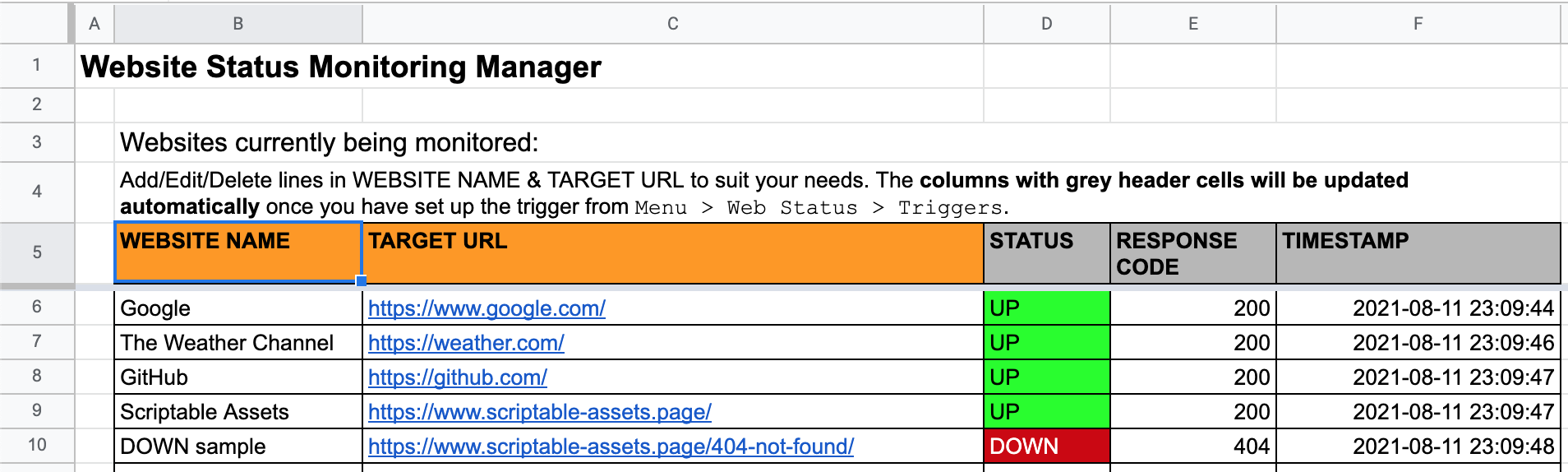
A Spreadsheet-bound apps script solution to conduct automated status monitoring on websites listed by the user in a Google Sheets management file. A separate status log file in Google Sheets will be created so that users can easily integrate data with BI services such as Google Data Studio. Notifications of changes in website status will be sent to the user’s Gmail. An optional setting to send notifications to Google Chat is available.
Nice example of using Google Chat for individual/group notification. The developer of this is also very responsive on Github if you encounter issues or have suggested changes.
For community members receiving these timely updates, this “bot” may seem magical. In reality, it’s neither magic nor a traditional Chat bot, so the reference in the Chat UI calling it a “bot” is a bit of a misnomer. The Google Updates “bot” is in fact a simple Google Apps Script application that parses the RSS feed about new posts, and sends them asynchronously to the room via webhooks.
We’ve highlighted the ‘Wexbot’ before both in a Pulse post and in a Totally Unscripted episode, but nice to see it also feature in the official Google Developers blog.
The basic principle behind tracking Google Sheet opens is the same as the one behind email tracking with a transparent pixel. In a Google Sheet, we will use the IMAGE()function, which will call a deployed Google Apps Script web app URL with some parameters in the query string. The web app will be able to do whatever you need among the following: record to a spreadsheet, create a message via a messenger, or simply send an email.
If your organisation is using Google Workspace Business Standard, Business Plus, Enterprise, or one of the other supported plans, you are likely taking advantage of the power of Google’s Shared Drives.
If you have decided to create a Google Apps Script project that needs to get a list of your Shared Drive (or a user’s shared drives in the case of a WebApp), then you might be scratching your head right now wondering how to get this list using the built-in DriveApp class.
Whelp, unfortunately, at the time of writing this article the DriveApp class does not have this functionality. However, it is pretty easy to access in a single line of code using an Advance API.
It is easy to search and replace text in Google Documents with the DocumentApp service of Google Apps Script. You can use use findText method with simple regular expressions to find text elements in the document that match a pattern and replace them with the specified text. All well and good but in some cases, this simple search and replace function may fail if the search text does not transform into a valid regular expression.
Some more regex goodness this time from Amit Agarwal who provides some very useful tips on escaping characters when using the DocumentApp service and findText method. Click through to the source link for more details.