This is a sample workaround for letting users running Google Apps Script on Google Spreadsheet without both authorizing the scopes and showing the script.
The post highlights the use of the existing =IMPORTML() Google Sheets function and a publish webapp to run a Google Apps Script without the end user having to authorize the script. A limitation of this approach, and also important warning to keep in mind, is the deployed web app needs to be deployed to run as the script owner and by anyone who has the web app link.
When it came out, the new Google Apps Script IDE was, of course, a big deal. It’s way better than the legacy one. It brought syntax highlighting, keyboard shortcuts, command palette and just a much better UI experience.
In fact the reason it’s so good is that it’s built on top of VS Code Monaco editor. But it’s definitely still far away from what a real VS Code installation can do. You can get all the functionality of the online IDE and much more more: autocomplete, custom themes, installation of modules, linting, snippets, etc.
How to remove all blank rows from one or more tables in a Google Docs document with Google Apps Script. You may also delete blank rows from tables in Google Slides.
Learn how to build a Google Sheet journal that accepts new entries via text message. My toddler recently turned two and a half and my second daughter was born three weeks ago, so special moments are abundant but the ability to remember them is severely compromised. His suggestion of recording a memory every day in an Excel sheet or leather bound journal resonated with me, but after a few days of trying to find time to open up Excel and write a memory I realized I needed a more lightweight solution. … Twilio makes it easy and cheap to set up a dedicated phone number that can record those text messages to a Google sheet.
Nice example on the Twilio blog on using their service with Google Sheets. There is little setup required but this can all be achieved in 4 lines of code. Unfortunately, sending/receiving SMS messages with Twilio is not free, but it might be a service you keep in mind for Apps Script projects.
Maximum runtime – in order to prevent the tool from reaching the limits imposed by Google you can adjust the number of minutes the tool can run for. Change this in the ‘GlobalVariables.gs’ file in the Script Editor.
Continue from where it left off – if you have a lot of Google folders and files to handle and the above runtime is reached the tool will complete the current row/folder and prompt you to run it again, without duplicating any folders or files already created.
Popups – as well as the ‘Log’ sheet the tool displays a direct popup to the user if it encounters a problem.
Full naming control – you have the ability to tweak every single folder and file name that is created by the tool. See the Concatenate section below to understand the true power of this.
Clickable links – created by the tool which means you can navigate directly to the new folders and files directly from the Google Sheet.
Add more files – the tool currently has columns for 10 files to be added to each folder, but you can actually append more as long as you follow the same convention of 2 columns per file (1 file name and 1 file ID). Do this before you run the tool as you cannot add more files to a folder once it has been created.
Add more folders – after running the tool you can either choose to clear all of the data within it (use the ‘Reset sheets’ option from the ‘Admin’ menu) and start again or you can simply append further rows/folders and re-run without any duplication (if the ‘Folder Link’ column is not blank/empty then it will skip that row).
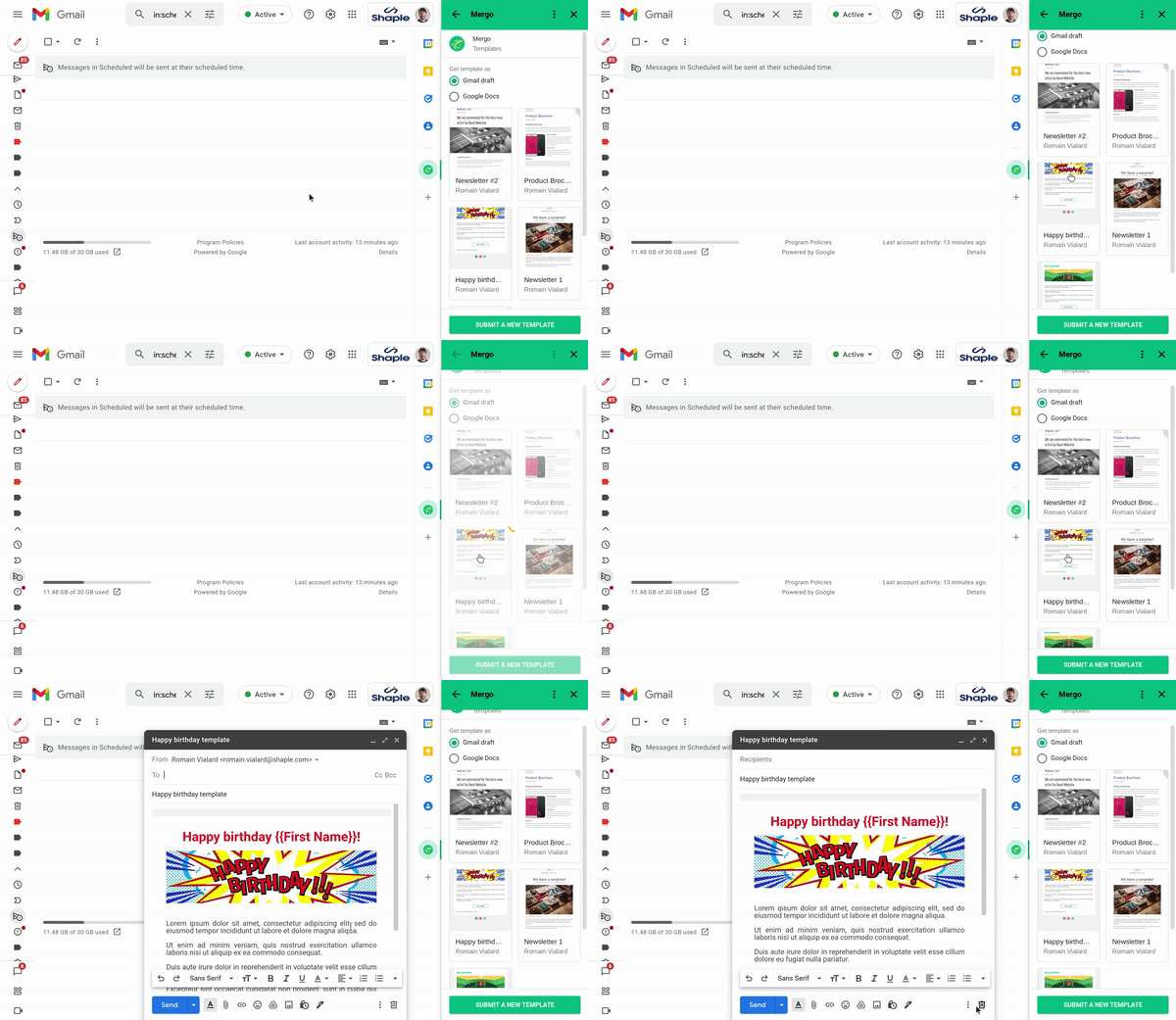
Mergo is a mail merge add-on for Gmail. With the new gallery, users can easily create, share & reuse templates.
Instead of starting your email from scratch, you can open the gallery and select a template: it will appear as a draft in Gmail.
We recently had Romain Vialard join us on Totally Unscripted to talk about some of his add-ons. This post is another example of Romain’s continual exploration of Apps Script, this time looking the new Grid view for the CardService. You an find out more in the source link.
A wonderful set of video tutorials showing you how to set up a web app and connecting it to a Google Sheet. It starts off with a simple form and covers areas like getting data from a sheet and sending it back and using Materialize CSS for to easily create a good looking app. Plus, it also looks at connecting a Google Calendar to the app and how to create multiple pages in the web app.
This is a sample script for sending Outlook emails using Microsoft account with Google Apps Script. Before you use this script, please install OnedriveApp which is Google Apps Script library. And, please authorize your Microsoft account for using Microsoft Graph API.
The author of this contribution, Kanshi Tanaike, always comes up with interesting Google Apps Script solutions. This particular example uses a OnedriveApp library which makes it easy to interact with other part of the Microsoft Graph API expanding the possibilities.
In this post, we’re going to look at a simple issues reporting system, where the teacher fills out a Google Form to report the issue. This is stored in a Google Sheet, and an email with the summary of the issue is either sent to the maintenance person or IT technician, depending on the type of issue.
This is based on a system I introduced at the academy where I work, which is in Spain but not all the teachers speak Spanish, so the form allows them to report the issue in English and then it’s translated into Spanish for the relevant person to resolve the issue.
In this post Baz Roberts highlights the benefits of Google Apps Script Language Service to translate Google Form responses into another language.
This is a sample script for sending multiple emails using the batch request with Gmail API using Google Apps Script. When multiple emails are sent using “GmailApp.sendEmail” and “MailApp.sendEmail”, a loop is used. But in this case, the process cost becomes high. In this post, I would like to introduce the sample script for reducing the process cost under this situation. Gmail API can be requested with the batch request. The batch request can be processed with the asynchronous process. By this, I thought that the process cost for sending multiple emails. So, this sample script sends multiple emails using the batch request with Gmail API.
I imagine many in the Apps Script developer community have a script or two that sends email. This post highlights a solution using the Gmail API to send emails in a batch, keeping in mind the limitations highlighted in the post.