The printStackTrace method of Java is useful for handling exceptions and errors during development. It tells you the exact line number in your source code and the file name where the problem occurred.
If you are working in the JavaScript / Google Apps Script world, you can use the console.trace() method to output the complete stack inside the web console ( or StackDriver logs for Google Scripts).
A better alternative is that you parse the stack property of the Error object. This contains the entire stack trace along with line numbers, column position and the function names.
Great debugging tip from Amit that you can use in Google Apps Script for parsing the entire stack trace along with line numbers, column position and the function names. Check the source link below for example code and usage.
Cleanse Google Sheet data by searching for specific words in a columns and replacing them with an alternative. Colour any cell changes to highlight. This is one of many ways of performing the task simply using loops.
A list of words to find and their replacement equivalent.
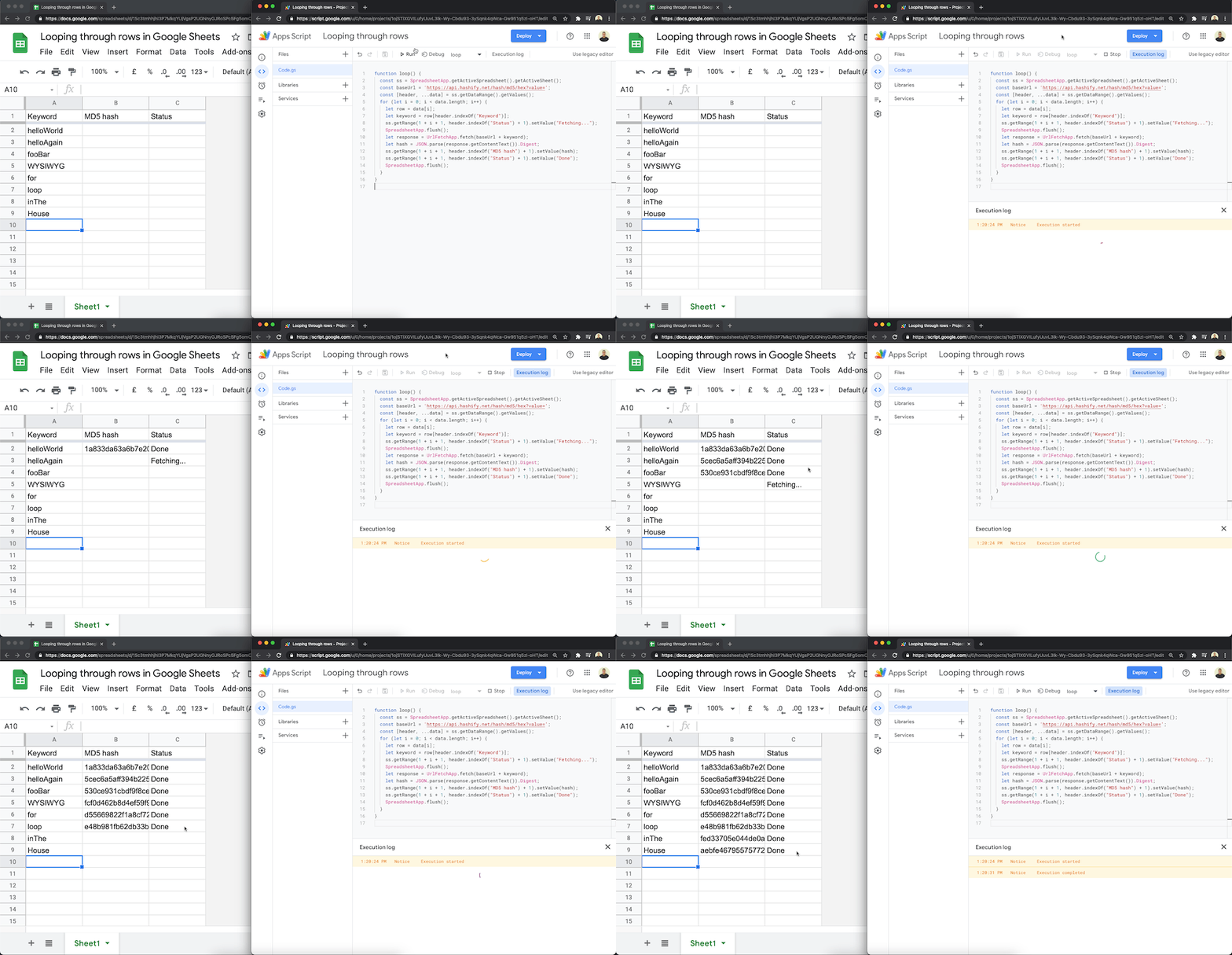
show a processing status in a cell when looping through rows in google sheets using google apps script.
When working with small batches of data it can be useful to show the user that the data is being processed. Here is an example script from Sourabh Choraria which use SpreadsheetApp.flush() to force write updates to a Google Sheet. As this method relies on .setValue() instead of .setValues() it’s worth keeping in mind for bigger data sets that using HTMLService and a custom dialog or Speadsheet.toast()
If the .setValue()/.flush() Al from coda has provided this gist
To make this work, you need to add a Sparkline() function to your Google Sheet that references a hidden “For progress” column: pic.twitter.com/jk87wvuuyj
Use Github as a back end for caching large objects across platforms. It’s possible to use a github repo as the back end for a caching service, and by taking this approach we can share data between Apps script and multiple platforms. It also means you can retrieve the data with the git CLI in addition. It works in exactly the same way as all the other backends. … Using a regular git Repo means you can make it private and share it using the tools already built into Github.
This is a sample script for plotting the points on an image using Google Apps Script. Unfortunately, in the current stage, there are no methods for directly editing the image and putting the texts and some shapes in the methods for Google Apps Script. So in this case, it is required to use the workaround.
Clever workaround that uses Google Slides as a canvas for adding text to images.
Unit testing is an extremely important practice. It helps developers avoid bugs easily and lets you know when something is broken immediately. … There are numerous libraries that exist for unit testing in JavaScript, including Jest and Mocha; however, they aren’t necessarily well-adapted to run under the Google Apps Script environment. … For that reason, I built my own library with Google Apps Script in mind.
We’ve featured a couple of community contributions around Google Apps Script Unit Testing and if this is a topic that interests you then the related posts section below will link to additional resources. This post from Dmitry Kostyuk is a great addition and the accompanying UnitTestingApp library that is shared in the post has some very useful Google Apps Script related features such as a dedicated method to check your data is a 2D array (particularly useful in the context of handling spreadsheet values). Follow the source link for more details…
Christian Heilmann’s tweet – Feature request for Gmail: automatically find and follow the unsubscribe link in all highlighted emails – prompted me to build an automated system for unsubscribing your Gmail address from the bulk senders. Here’s how it looks…
This is an older example from Amit Labnol that recently pinged my Google Alerts from this Best Unroll.me Alternatives post. The source post from Amit has some nice details about how marketing emails are marked up and the code shared might be a nice starter for your own solution.
I’m a great fan of both Redis and GraphQL. You’ll find plenty of articles about them around on this site. Although I’ve showed many examples of GraphQL and Apps Script, it was never possible to connect up Apps Script to Redis, because redis doesn’t use HTTP to communicate between Client and Server. I’ve come across upstash.com (with a free tier), that fronts a redis database with a GraphQL API.
The upstash.com service looks like a nice find from Bruce Mcpherson and his post details how you can use this for cross platform caching.
Google Sheets has a powerful find and replace function. But you may want to use Google Apps Script to do the same job. StackOverflow has a question on this. The accepted answer would require you to loop through all cells, find the text, replace it and post the new text back to the cell. Google Apps Script has a more powerful, and simpler, method called TextFinder.
Usual post highlighting the TextFinder method which you can use to find and replace text in Google Sheets. The post has more information about this method and how to use it.