At the Devoteam UK GDC event on the 16, October 2025 I debuted, ‘Mystic Marty’ and made three AppSheet and Apps Script predictions for H1 2026.
The Predictions
These predictions were:
Deep Integration of AppSheet into Google Workspace Flows: By allowing AppSheet applications to act as both triggers and actions within Workspace Flows, AppSheet transitions from an isolated tool into a managed step within a larger, automated business value stream, preventing the creation of new data silos and process bottlenecks.
AppSheet Actions within Gemini Enterprise (aka Agentspace): Integrating AppSheet into Gemini Enterprise positions it as a mechanism for structuring and exposing proprietary business data, enabling the creation of custom, data-aware agents at enterprise scale.
Gemini App as a Google Apps Script Service: By making it simple for AppSheet automations to call Apps Script functions that interact directly with Vertex AI and Gemini models, this feature addresses complex, domain-specific enterprise needs that go beyond the scope of no-code solutions.
The Validation
Roll forward one week to the Google Workspace Developer Summit in Paris, and we had confirmation in a presentation by Luke Camery (Product Lead, Enterprise Collaboration at Google) that Google is in the early planning stages of an AI Advanced Services in Apps Script which would be launched in 2026.
Not only that, but a free quota was being considered, which would avoid the need for users to create an associated Google Cloud Project (GCP). The details are still being worked out and this offer is subject to change, but the fact it is being considered answers a lot of the questions I hear on this topic from the community.
The Method Behind the Mysticism
These predictions weren’t just guesswork. They stemmed from both historic product knowledge and more significantly from an analysis with Gemini of the ‘DORA: The 2025 State of AI-assisted Software Development’ report and in particular exploring how high-quality internal platforms can unlock and amplify the value of AI.
The report’s emphasis on internal platforms as a key enabler for AI was a clear indicator. It suggested that Google would inevitably need to provide more powerful, integrated tools—like AI services in Apps Script—to allow enterprise developers to build these exact kinds of high-value platforms.
The hint of a free quota, is more than just interesting news—it signals a significant potential shift for the Apps Script community. The removal of the GCP barrier, in particular, would allow seamless access to powerful AI tools, allowing Google Workspace users an opportunity to experiment with generative AI in their automations.
While Google’s plans are “subject to change”, the direction seems clear. The integration of AI Advanced Services directly into Apps Script could represent the next major evolution of the platform, moving it from a tool for automation to an integrated high-value platform for intelligent application development. As always, we’ll be watching this space closely.
A fact-check custom function for Google Sheets to be used as a bound Apps Script project powered by a Vertex AI agent and Gemini model.
This sample demonstrates how you can use two powerful types of AI resources directly into your Google Sheets spreadsheets
A new tutorial published by Google’s Pierrick Voulet, while ostensibly about creating a fact-checking tool in Google Sheets, offers something more valuable to developers: a clear framework for integrating powerful, multi-step Vertex AI Agents into Google Workspace solutions.
While the example is a FACT_CHECK custom function, the underlying architecture caught my eye as it provides a blueprint for connecting Google Workspace applications with the sophisticated reasoning capabilities of custom AI agents.
The Core Architectural Pattern
The solution uses Google Apps Script as a bridge between the user-facing application (Google Sheets) and the backend AI services on Google Cloud.
When a user calls the custom function, the script authenticates with a service account and makes a call to a deployed Vertex AI Agent. This agent then performs its multi-step reasoning. The result is then optionally passed to a Gemini model for final formatting before being returned to the Sheet.
This pattern is highly adaptable for various use cases, allowing developers to bring advanced Agentic AI into your own solutions.
Key Components for Developers
For developers looking to adapt this framework, the tutorial outlines the essential components:
A configured Google Cloud Project with the Vertex AI API enabled.
A deployed ADK Agent on the Vertex AI Agent Engine.
An Apps Script project using a service account for secure, server-to-server authentication with Google Cloud.
The provided Apps Script code (Code.gs and AiVertex.js) serves as a robust starting point, handling the API calls to both the reasoning agent and a Gemini model for final output formatting.
Ultimately, the fact-checking tool serves as an excellent proof of concept. The true value for the developer community, however, lies in the architectural blueprint it provides. This tutorial offers a clear model for integrating multi-step AI reasoning into Google Workspace add-ons, opening the door to a new class of intelligent applications.
As developers, we are constantly looking for ways to improve our workflow and the quality of our code. The recent rise of powerful AI assistants, like Google’s Gemini, has opened up new frontiers for productivity, particularly in the realm of code reviews. These tools can offer instant feedback, suggest optimisations, and spot potential bugs we might have missed.
However, there’s often a practical hurdle: providing the AI with the complete context of our project. For Google Apps Script developers, this can mean the tedious process of copying and pasting code from multiple .gs and .html files, not to mention the crucial appsscript.json manifest.
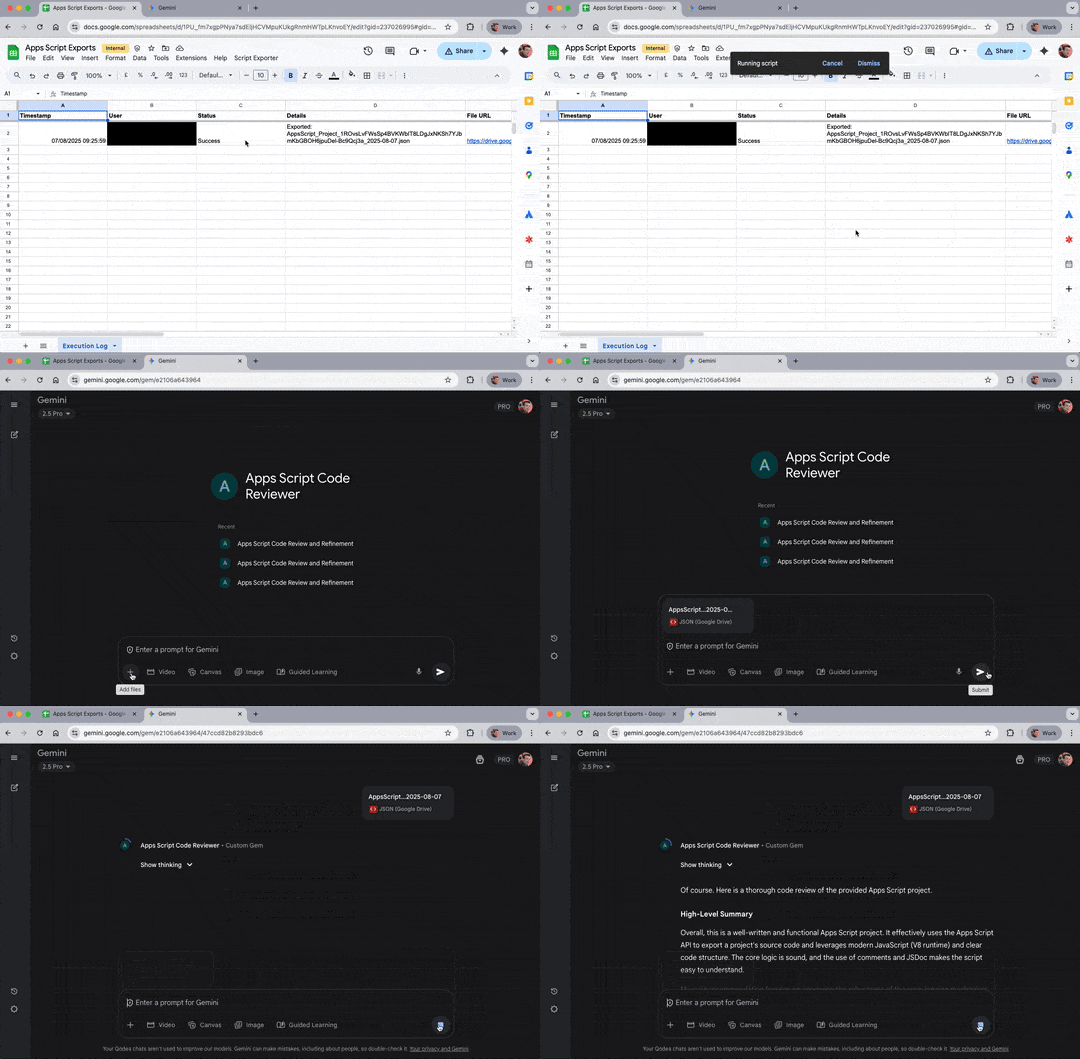
To solve this, I’ve developed a simple tool built, fittingly, with Apps Script itself. It’s a Google Sheet that lets you export an entire Apps Script project into a single, neatly formatted JSON file, ready to be added directly to the Gemini App or a Gemini Gem.
Why This Approach?
Holistic Reviews: By packaging every file—including the manifest with its scopes and dependencies—you give the AI the bigger picture leading to more accurate analysis.
Boosted Efficiency: Forget manual copy-pasting. A couple of clicks are all it takes to get a complete project export, saving you time and preventing errors.
How It Works & How to Prompt Gemini
To get the most out of your exported project file, it helps to understand its structure and how to tell your AI assistant what it’s looking at.
The JSON Structure
The tool uses the official Google Apps Script API to fetch your project’s content. The resulting .json file contains a list (an array) of File objects. Based on the official documentation, each object in the list represents one file from your project and looks something like this:
name: The name of the file (e.g., “Code”, “Index”, “appsscript”).
type: The kind of file it is. This will be SERVER_JS for .gs files, HTML for .html files, and JSON for the appsscript.json manifest.
source: The actual code or content of the file as a string.
Prompting Gemini for the Best Results
When you upload this file, you can give Gemini a simple instruction to ensure it understands the context. Here is a sample prompt you can adapt:
“Please review the attached Google Apps Script project. The JSON file contains an array of file objects, where each object has a ‘name’, ‘type’, and ‘source’. Please analyse all the files together as a single project to provide a comprehensive review.”
This prompt tells Gemini exactly how to interpret the file, ensuring it sees the appsscript.json manifest for its scopes, the server-side logic in the .gs files, and any client-side .html files as a complete, interconnected project.
Tip: For scripts bound to a Google Sheets, Docs, or Slides, to get the most accurate review, add these documents to your Gemini conversation alongside the exported JSON file to give Gemini the complete context.
Take It to the Next Level: Create a Custom Gem
To save even more time, you can embed these instructions into a custom Gem in the Gemini App. This creates a reusable ‘persona’ for your code reviews. When creating your Gem, you can provide it with more detailed instructions to focus its analysis.
Here is a more advanced set of instructions you could use for your “Apps Script Code Reviewer” Gem:
You are an expert Google Apps Script developer who specialises in writing clean, efficient, and secure code.

When I provide a JSON file, it will represent a complete Apps Script project. The file contains an array of file objects, each with a 'name', 'type', and 'source'.

Your task is to perform a thorough code review of the entire project. Please analyse all files together.

Specifically, focus on:

1. **Best Practices:** Check if the code follows the official Google Apps Script style guide and modern JavaScript (ES6+) conventions.
2. **Performance:** Identify any potential bottlenecks, inefficient loops, or excessive API calls.
3. **Security:** Look for any potential security vulnerabilities, especially concerning data handling and web app permissions.
4. **Clarity and Readability:** Assess the code for clarity, and check for adequate comments and meaningful variable names.

Please provide your feedback in a structured format, starting with a high-level summary and then a detailed list of suggestions, grouped by file.

If you are suggesting code revisions, provide the fully revised file.
Getting Started
Here’s how to set up your own Apps Script project exporter.
Step 1: Prerequisites – Enabling the Apps Script API
The tool relies on the Apps Script API to fetch project files. To use it, you first need to link your script project to a Google Cloud Platform (GCP) project where the API is enabled.
Create a GCP Project: If you don’t already have one, create a standard GCP project by visiting the Google Cloud Console.
Enable the Apps Script API: Within your GCP project, navigate to the “APIs & Services” dashboard, click “+ ENABLE APIS AND SERVICES”, search for “Google Apps Script API”, and enable it.
Configure the OAuth Consent Screen: Before the script can be authorised, you must configure the consent screen.
In the GCP Console, navigate to “APIs & Services” > “OAuth consent screen”.
Choose Internal for the User Type and click Create.
Fill in the required fields (App name, User support email, and Developer contact information) and click Save and Continue. No other configuration is needed. As this is for internal use, you do not need to submit the app for verification.
Link to Your Apps Script Project:
Open your Apps Script project (the one containing the exporter code).
Go to “Project Settings” (the cog icon ⚙️).
Under “Google Cloud Platform (GCP) Project”, click “Change project” and enter your GCP project number.
Step 2: Setting Up the Exporter Sheet
Make a Copy: Click this link to make your own copy of the pre-configured Google Sheet Template.
Configure the Destination Folder:
In your new sheet, go to Extensions > Apps Script.
In the Code.gs file, find the line const DEST_FOLDER_ID = '...';
Replace the placeholder ID with the ID of the Google Drive folder where you want your JSON exports to be saved. You can get this from the folder’s URL (it’s the string of characters after folders/). Tip: Your copy of this template can be shared with your colleagues. Also share the folder with them so that the script can write the export file.
Save and Authorise: Save the script project. Return to your sheet and reload the page. A new “Script Exporter” menu will appear. The first time you run it, you will be prompted to authorise the script’s required permissions.
Step 3: Exporting Your First Project
Using the tool is the easiest part!
Find the Script ID: First, you need the ID of the project you wish to review. The easiest way to find this is by copying it from the script editor’s URL.
For standalone scripts: The URL will look like https://script.google.com/d/THIS_IS_THE_ID/edit. The ID is the long string of characters between /d/ and /edit.
For container-bound scripts (in a Sheet, Doc, etc.): From your Google Sheet or Doc, open the script editor via Extensions > Apps Script. The URL in this new browser tab will have the same format. Copy the ID from there.
Run the Exporter: In your exporter sheet, click Script Exporter > Export Script Project.
Paste the ID: When the dialog box appears, paste in the Script ID you just copied and click OK.
Check the Output: The script will fetch the project files, create a JSON file in your designated Drive folder, and confirm with a success message. A log of the export, including a link to the file, will be automatically added to the “Execution Log” sheet.
You can now head over to the Gemini App (gemini.google.com), add the JSON file from Google Drive, and start your comprehensive code review!
I hope you find this tool as useful, it’s a small optimisation, but one that hopefully makes integrating Gemini for Workspace into our daily Apps Script development practices that much smoother. I’d love to hear if you use this or similar approaches and any other tips you have for Gemini assisted Google Workspace development. Happy scripting!
🤖 AI-powered Gmail assistant that automatically analyzes emails and drafts responses using Google’s Gemini AI
Google is rapidly integrating Gemini across the Workspace platform, bringing powerful AI features directly into the tools we use every day. While these native integrations offer incredible value, developer-led solutions provide a tantalising glimpse into the future of hyper-personalised automation, especially as we look toward the potential of the new Google Workspace Flows. This is where the real magic begins, allowing for custom agents that can handle complex, multi-step tasks.
Google Developer Advocate Zack Akil has created one such example solution that turns your Gmail inbox into a smart, automated assistant. His open-source project, the “AI-got-this-gmail-delegator,” is a Google Apps Script that uses the Gemini API to analyse incoming emails, categorise them, and even draft replies based on your own knowledge and writing style.
This project is a great example of how to combine the power of Google Workspace automation with the intelligence of modern AI. The script works by:
Analysing Incoming Emails: When a new email arrives, the script sends the content to the Gemini API for analysis.
Providing Context: The AI’s analysis is guided by a “knowledge base” that you provide in a Google Doc. This could include your role, common responses, or specific project details.
Intelligent Triage: Based on the email’s content and your knowledge base, the script decides whether the email needs a reply, requires manual intervention, or can be archived.
Drafting Replies: For emails that need a response, the script uses Gemini to generate a draft reply in your own writing style, ready for you to review and send.
The entire process is logged in a Google Sheet, giving you a complete overview of your AI assistant’s activity.
What makes this project so compelling is its practicality and customisability. By modifying the Google Doc knowledge base and the writing style prompts, you can create a personalised email assistant that understands the nuances of your work.
To explore the code and set up your own AI email delegator, check out the project on GitHub.
This article explores the integration of the Gemini Command-Line Interface (CLI) with Google Sheets using the Model Context Protocol (MCP). It demonstrates how to leverage the open-source projects MCPApp and ToolsForMCPServer to create a bridge between the Gemini CLI and Google Workspace. This enables users to perform powerful data automation tasks, such as creating, reading, and modifying tables in Google Sheets directly from the command line, using natural language prompts. The article provides practical examples and sample prompts to illustrate the seamless workflow and potential for building sophisticated, AI-powered applications within the Google Cloud ecosystem.
For developers who work in the command line, the introduction of Google’s Gemini Command-Line Interface (CLI) has opened up new ways to interact with AI. The open-source tool allows you to bring the power of Gemini models directly into your terminal, making it a useful companion for coding assistance, content generation, and task automation. While the CLI can interact with your local file system and the internet, its standard capabilities don’t provide a direct path to your personal data within Google Workspace.
But what if you could extend it? What if you could create a secure connection, allowing the Gemini CLI to interact with your own files in Drive, events in Calendar, or emails in Gmail?
Over the past month, Google Workspace Developer Expert Kanshi Tanaike has published an insightful series of blog posts that provides a practical blueprint for achieving just that. In this series, he demonstrates how to use the flexibility of Google Apps Script to create a powerful, personalised bridge between the Gemini CLI and the entire suite of Google Workspace services.
At the centre of Kanshi’s solution is a simple and effective architecture. He shows readers how to build a Model Context Protocol (MCP) server using a Google Apps Script project deployed as a Web App. This server acts as the secure intermediary between the Gemini CLI and your Google account.
The key advantage of this approach lies in its security and simplicity. By using Apps Script, the complex and critical OAuth2 authorisation is handled natively within the Google ecosystem. This means developers can create a robust tool without the overhead of managing credentials or setting up separate cloud infrastructure.
Throughout the series, Kanshi doesn’t just provide the theory; he delivers the tools to make it happen. He has developed and shared two key open-source Apps Script libraries, MCPApp and ToolsForMCPServer, which significantly simplify the process. These libraries provide a ready-to-use framework and a rich set of functions for interacting with Workspace services.
The result is a system capable of executing complex, multi-step automations from a single, natural-language prompt. The examples in his posts speak for themselves:
Automated Data Entry: Fetching a multi-day weather forecast and populating it directly into a Google Sheet.
Content Creation: Uploading a local PDF to Drive, generating a summary, creating a new Google Slides presentation from that summary, and emailing it to a colleague.
Interactive Tasks: Generating a custom survey in Google Forms and sending out the link via Gmail.
This extensibility is what sets the approach apart. While a standard tool like the Gemini App (gemini.google.com) provides a familiar conversational interface, it offers a fixed set of features. This CLI-based method allows developers to keep that same intuitive, conversational style of interaction but makes it completely extensible. With the CLI and a custom MCP server, developers are no longer limited—they can build bespoke tools to solve their specific challenges.
For example, a common request from Workspace users is the ability to generate an entire presentation from source material. Using this framework, a developer could easily build a custom tool to do just that, triggered by a single command.
This series is a great example of the innovation happening within the Google Workspace developer community. While this command-line approach is naturally suited for developers and power users comfortable with scripting, it offers a level of control and automation that is difficult to achieve through graphical interfaces. It provides a clear, powerful, and extensible pattern for anyone in this group looking to explore their own sophisticated AI-powered automations.
We highly recommend diving into the series to see what’s possible. You can start with the most recent post, which links back to the previous articles in the series:
We’re very excited to announce that Gemini in AppSheet Solutions is now Generally Available (GA)! This powerful capability allows AppSheet Enterprise Plus users to integrate Google’s Gemini directly into their automation workflows.
Following our previous post announcing the public preview, we are excited to share that Gemini in AppSheet Solutions is now generally available (GA) for all AppSheet Enterprise Plus users. This update allows creators to directly integrate Google’s Gemini models into their automation workflows, making AI-powered automation more accessible than ever.
What This Means for Creators
This move to general availability solidifies the simplified AI integration within AppSheet. Instead of complex setups involving API keys and external scripts, creators can now use a native “AI Task” step within their AppSheet automations. This new task can handle jobs like extracting specific data from uploaded photos or PDFs, and categorising text directly within AppSheet.
The GA release also brings enhanced confidence in building AI-powered solutions. The in-editor task testing feature allows creators to test and refine AI prompts and configurations with sample data before deployment. This is a crucial step for ensuring reliable AI, and it allows for much quicker iteration.
For administrators, the AppSheet admin dashboard now provides visibility into Gemini usage within the organisation, and allows for control over which creators can use these new features.
Key updates since Public Preview
For creators, the GA release includes a number of improvements:
AI tasks now support more column types, including REF types, allowing you to use information in linked tables.
The quality of AI responses has been improved for certain data types.
For admins, the AppSheet admin console now shows your organisation’s credit entitlement and consumption, providing insights into how your users and applications are using Gemini.
The Power of the Underlying Model
It’s also worth noting that the underlying Gemini models are market leaders and are continuously improving. New tools on the horizon, such as ‘URL context’ and the ability to also ground results with Google Search, will hopefully filter through to AI Tasks in AppSheet enabling creators to build even more powerful solutions. These advancements will allow for the creation of sophisticated AI assistants that can use real-time information, all without the need for fine-tuned models or complex custom integrations.
Getting Started: Example Template
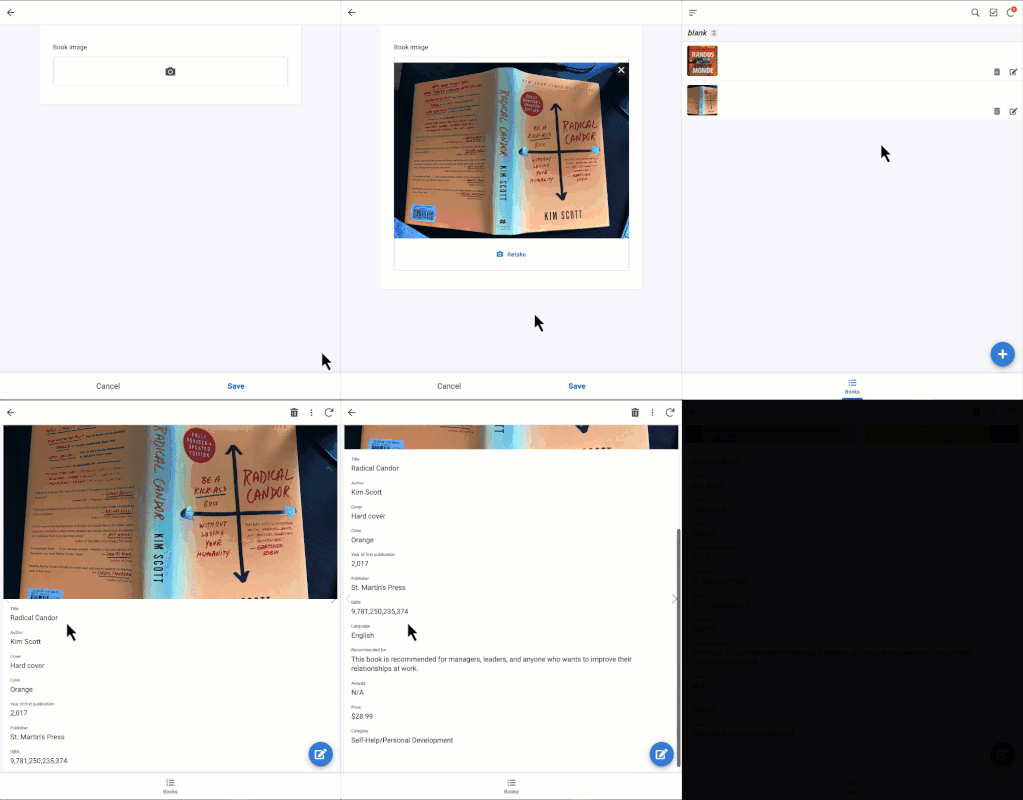
The announcement post includes links to the relevant documentation for creators and admins. For those looking for a practical example, the AppSheet team has provided a “Book tracking with Gemini” template. This app showcases how you can upload a picture of a book cover, and then use two different AI tasks to automatically extract book-related information and categorise it by genre. I found this to be an excellent starting point for understanding how to implement these new features in your own projects.
Nine years ago, I wrote an article describing how to scrape data from the internet in about five minutes. It featured a Google Apps Script library that allowed you to specify what to download from a webpage by identifying the text surrounding your target information. This became one of my most-read articles, and the library itself saved me a significant amount of time.
With the advent of large language models like Gemini, this entire paradigm is shifting. Just as “vibe coding” describes a more intuitive approach to programming, I’d say we’re now entering an era of “vibe-scraping.”
Using data from the web has long been a staple. But what if you could just describe the information you want and have an AI fetch it for you?
Google Developer Expert, Ivan Kutil, introduces a modern approach he calls “vibe scraping.” In his latest post, he demonstrates a powerful method that combines Google Apps Script with the Gemini API to pull structured data from any webpage directly into a Google Sheet.
A Practical Example: From Movie Links to a Full Database
To understand the power of this technique, Ivan set out to solve an old problem. He had a Google Sheet with a list of movies, each with a URL pointing to its page on ČSFD (a popular Czech-Slovak film database). His goal was to automatically populate columns with details like genre and rating by extracting the data directly from those linked pages.
At the heart of his solution is a new, experimental Gemini API feature called the URL Context tool. As the documentation notes, this tool is surprisingly flexible: it “can then retrieve content from the URLs and use that content to inform and shape its response.”
The tool can be used in two main ways:
URL Context “By Itself”: In this mode, the tool directly fetches and processes the content from the URL you provide. This is a straightforward way to analyze the live content of a single page.
URL Context with Google Search Grounding: In this mode, the tool can read content from a URL and then use Google Search for a more in-depth understanding.
What makes Ivan’s script so elegant is how it combines this tool with the simplicity of Google Sheets. For each row, the script constructs a prompt for the Gemini API, asking it to analyse the content of the provided URL and find the specific information defined in the spreadsheet headers.
The result is a system where modifying your data query is as easy as renaming a column. This turns a potentially complex scraping task into a simple spreadsheet edit, allowing anyone to create powerful, custom data importers.
To get the full details and the code to build this yourself, check out Ivan’s original post.
The landscape of what’s possible within the browser is quietly undergoing a significant shift, and for Google Workspace Add-on developers, this could be a game-changer. Chrome’s AI mission is simple yet powerful: to ‘make Chrome and the web smarter for all developers and all users.’ We’re seeing this vision begin to take shape with the emergence of experimental, built-in AI APIs in Google Chrome, designed to bring powerful capabilities using models like Gemini Nano directly to the user’s device.
There is a growing suite of these on-device APIs. This includes the versatile Prompt API, specialised Writing Assistance APIs (like Summarizer, Writer, and Rewriter), Translation APIs (Language Detector and Translator), and even a newly introduced Proofreader API. For many existing Workspace Add-on developers, some of the more task-specific APIs could offer a relatively straightforward way to integrate AI-powered enhancements.
However, my focus for this exploration, and the core of the accompanying demo Add-on being introduced here, is the Prompt API. What makes this API particularly compelling for me is its direct line to Gemini Nano, a model that runs locally, right within the user’s Chrome browser. This on-device approach means that, unlike solutions requiring calls to external third-party GenAI services, interactions can happen entirely client-side. The Prompt API provides web applications, including Google Workspace Editor Add-ons, with an open-ended way to harness this local AI for text-based generative tasks.
To put the Prompt API’s text processing abilities through its paces in a practical Workspace context, I’ve developed a Google Workspace Add-on focused on text-to-diagram generation. This post delves into this demonstration and discusses what on-device AI, through the versatile Prompt API, could mean for the future of Workspace Add-on development, including its emerging multimodal potential.
Why This Matters: New Horizons for Google Workspace Developers
Using an on-device LLM like Gemini Nano offers several key benefits for Workspace Add-on developers:
Enhanced Data Privacy & Simplified Governance:Sensitive user data doesn’t need to leave the browser, meaning no external API calls are made to third-party servers for the AI processing itself, which is a huge plus for privacy and can simplify data governance including Google Workspace Marketplace verification and Add-on data privacy policies.
Potential for Cost-Free GenAI (with caveats!): Client-side processing can reduce or eliminate server-side AI costs for certain tasks. Remember, “Nano” is smaller than its cloud counterparts, so it’s best for well-scoped features. This smaller size means developers should think carefully about their implementation, particularly around prompt design to achieve the desired accuracy, as the model’s capacity for understanding extremely broad or complex instructions without guidance will differ from larger models.
Improved User Experience & Offline Access:Expect faster interactions due to minimise network latency.
The biggest takeaway here is the opportunity to explore new avenues for GenAI capabilities in your Add-ons, albeit with the understanding that this is experimental territory and on-device models have different characteristics and capacities compared to larger, cloud-based models.
Proof of Concept: AI-Powered Text-to-Diagram Add-on
To showcase the tangible possibilities of on-device text processing, the demonstrator Add-on (available in the Nano-Prompt-AI-Demo GitHub repository) focuses on a text-to-diagram use case:
Users can describe a diagram in natural language (e.g., “flowchart for a login process”).
The Add-on then uses the Gemini Nano API via the Prompt API to convert this text description into MermaidJS diagram code.
It also allows users to directly edit the generated MermaidJS code, see a live preview, and utilise an AI-powered “Fix Diagram” feature if the code has errors.
Finally, the generated diagram can be inserted as a PNG image into their Google Workspace file.
Nano Prompt API Demo
This example illustrates how the Prompt API can be used for practical tasks within a Google Workspace environment.
Under the Bonnet: Utilising the Chrome Gemini Nano Prompt API for Text
The Add-on interacts with Gemini Nano via client-side JavaScript using the LanguageModel object in the Sidebar.html file. I should also highlight that all of the Sidebar.html code was written by the Gemini 2.5 Pro model in gemini.google.com, with my guidance which included providing the appropriate developer documentation and this explainer for the Prompt API.
The Add-on’s core logic for text-to-diagram generation includes:
Session Creation and Prompt Design for Gemini Nano:A LanguageModel session is created using LanguageModel.create().
Generating Diagrams from Text: The user’s natural language description is sent to the AI via session.prompt(textDescription).
AI-Powered Code Fixing: If the generated or manually entered MermaidJS code has errors, the faulty code along with the error message is sent back to the model for attempted correction.
Given that Gemini Nano is, as its name suggests, a smaller LLM, careful prompt design is key to achieving optimal results. In this demonstrator Add-on, for instance, the initialPrompts (system prompt) play a crucial role. It not only instructs the AI to act as a MermaidJS expert and to output onlyraw MermaidJS markdown, but it also includes two explicit examples of MermaidJS code within those instructions.
Providing such “few-shot” examples within the system prompt was found to significantly improve the reliability and accuracy of the generated diagram code from text descriptions. This technique helps guide the smaller model effectively.
Navigating Experimental Waters: Important Considerations (and Reassurances)
It’s important to reiterate that the majority of AI APIs are still experimental. Functionality can change, and specific Chrome versions and flags are often required. I recommend referring to official Chrome AI Documentation and Joining the Early Preview Program for the latest details and updates.
Before you go updating your popular production Google Workspace Add-ons developers should be aware of the current system prerequisites. As of this writing, these include:
Operating System: Windows 10 or 11; macOS 13+ (Ventura and onwards); or Linux.
Storage: At least 22 GB of free space on the volume that contains your Chrome profile is necessary for the model download.
GPU: A dedicated GPU with strictly more than 4 GB of VRAM is often a requirement for performant on-device model execution.
Currently, APIs backed by Gemini Nano do not yet support Chrome for Android, iOS, or ChromeOS. For Workspace Add-on developers, the lack of ChromeOS support is a significant consideration.
However, Google announced at I/O 2025 in the ‘Practical built-in AI with Gemini Nano in Chrome’ session that the text-only Prompt API, powered by Gemini Nano, is generally available for Chrome Extensions starting in Chrome 138. While general web page use of the Prompt API remains experimental this move hopefully signals a clear trajectory from experiment to production-ready capabilities.
Bridging the Gap: The Hybrid SDK
To address device compatibility across the ecosystem, Google has announced a Hybrid SDK. This upcoming extension to the Firebase Web SDK aims to use built-in APIs locally when available and fall back to server-side Gemini otherwise, with a developer preview planned (see https://goo.gle/hybrid-sdk-developer-preview for more information). This initiative should provide a more consistent development experience and wider reach for AI-powered features.
A Glimpse into the Future: Empowering Workspace Innovation
On-device AI opens new opportunities for privacy-centric, responsive, and cost-effective Add-on features. While the demonstrator Add-on focuses on text generation, the Prompt API and the broader suite of on-device AI tools in Chrome offer much more for developers to explore
Focusing on Unique Value for Workspace Add-ons
It’s important for developers to consider how these on-device AI capabilities—be it advanced text processing or new multimodal interactions which support audio and image inputs from Chrome 138 Canary—can be used to extend and enhance user experience in novel ways, rather than replicating core Gemini for Google Workspace features. The power lies in creating unique, value-added functionalities that complement native Workspace features.
Explore, Experiment, and Provide Feedback!
This journey into on-device AI is a collaborative one and Google Workspace developers have an opportunity to help shape on-device AI.
Try It Out: Follow setup instructions to experience on-device AI with the demo, and consider exploring multimodal capabilities for your own projects by referring to the latest Early Preview Program updates.
Provide Feedback: Share your experiences either about the example add-on or through the Early Preview Program.
I hope you have as much fun working with these APIs as I have and look forward to hearing how you get on. Happy Scripting!
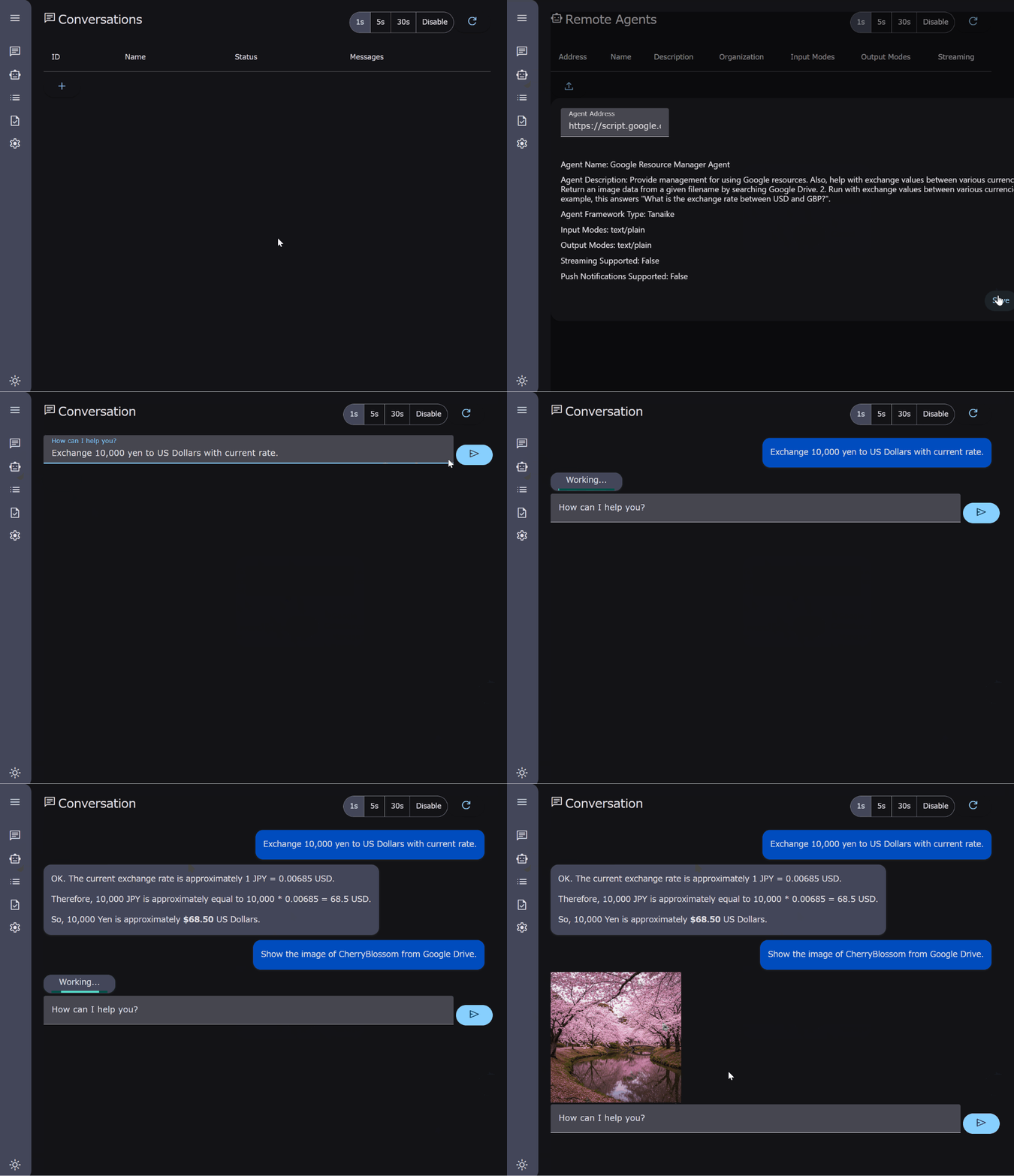
Exploring Agent2Agent (A2A) protocol implementation in Google Apps Script seamlessly allows AI agents to access Google Workspace data and functions. This could enable complex workflows and automation, overcoming platform silos for integrated AI applications.
The buzz around AI and collaborative agent systems is growing, and with it, the need for standardized communication. The recently introduced Agent2Agent (A2A) protocol aims to enable exactly that – allowing different AI agents, regardless of their underlying framework, to discover each other’s capabilities and work together. But how can the Google Workspace developer community tap into this exciting new frontier?
Enter prolific Apps Script contributor Kanshi Tanaike, who has once again provided a valuable resource for the community. Kanshi has published a detailed guide and a Google Apps Script library demonstrating how to build an Agent2Agent (A2A) server using Google Apps Script.
Why is this significant?
Kanshi’s work explores the feasibility of implementing a core A2A server component directly within the Google Workspace ecosystem. As Kanshi notes, “Such an implementation could seamlessly allow AI agents to securely access and utilize data and functionalities across Google services like Docs, Sheets, and Gmail via a standardized protocol.”. This opens up possibilities for:
Integrating AI agents with your Google Workspace data: Imagine AI agents that can directly interact with your Sheets, Docs, Drive files, or Gmail.
Building sophisticated AI-powered workflows: Automate complex tasks that span across different services, orchestrated by communicating AI agents.
Kanshi’s guide walks through the setup and implementing functions that allow AI agents to interact with Google Workspace services like Drive or external APIs via UrlFetchApp. This work significantly lowers the barrier to entry for Google Workspace developers looking to experiment with and implement A2A-compatible agents and as such I highly encourage you to check out the linked source post for the complete guide, code, and library details.
Use Gemini and Imagen 3 on Vertex AI to create the images you envision. Generate tailored images from reference sources with Apps Script.
Have you ever generated an image using Gemini in Google Workspace and wished you could easily tweak or iterate on it? While Gemini for Workspace is great for initial creation, iterating on those images directly isn’t currently straightforward. A recent post by Stéphane Giron highlights a programmatic approach using Google Apps Script, Vertex AI (with Imagen 3 and Gemini models) to achieve the goal of generating image variations based on a source image.
Stéphane’s method uses a source image (which could be one previously generated or found elsewhere) which is provided to the Vertex AI API for Gemini (e.g., gemini-2.0-pro) along with text instructions for the required changes. The Gemini model analyzes the image and the request to generate a new prompt. This new prompt is then used with the Imagen 3 model (e.g., imagen-3.0-generate-001) via Vertex AI to generate the final image variation.
It’s interesting to contrast this with another solution we’ve previously featured from Kanshi Tanaike on ‘Iterative Image Generation with the Gemini API and Google Apps Script‘. While Tanaike’s method uses the Gemini API’s chat history to iteratively build an image from sequential text prompts, Stéphane’s focuses on reinterpreting a source image with specific modifications via a newly generated prompt.
You can check out Stéphane Giron’s source post for the complete code and setup instructions.