

Google recently introduced the Sheets canvas feature to the Gemini Alpha.
Sheets canvas allows users to conversationally build interactive, read-write mini-apps directly from their spreadsheet data. At this time, Sheets canvas is limited to supporting only single-table and single-header tables.
The new Sheets canvas is undeniably a powerful tool for creating interactive applications directly from spreadsheet data. It removes a lot of friction for rapid app creation and allows the building of visual interfaces through simple conversation beyond the current tools in Google Sheets. It is an impressive leap forward.
One question I had was how Sheets Canvas compares to other no-code tools like AppSheet. To help explore this, I thought it would be useful to run a practical comparison. In this post, we will build a Kanban board using the same project management dataset, allowing us to evaluate the new Sheets canvas against Google AppSheet.
The Kanban Board Test: Relational vs Flat Data
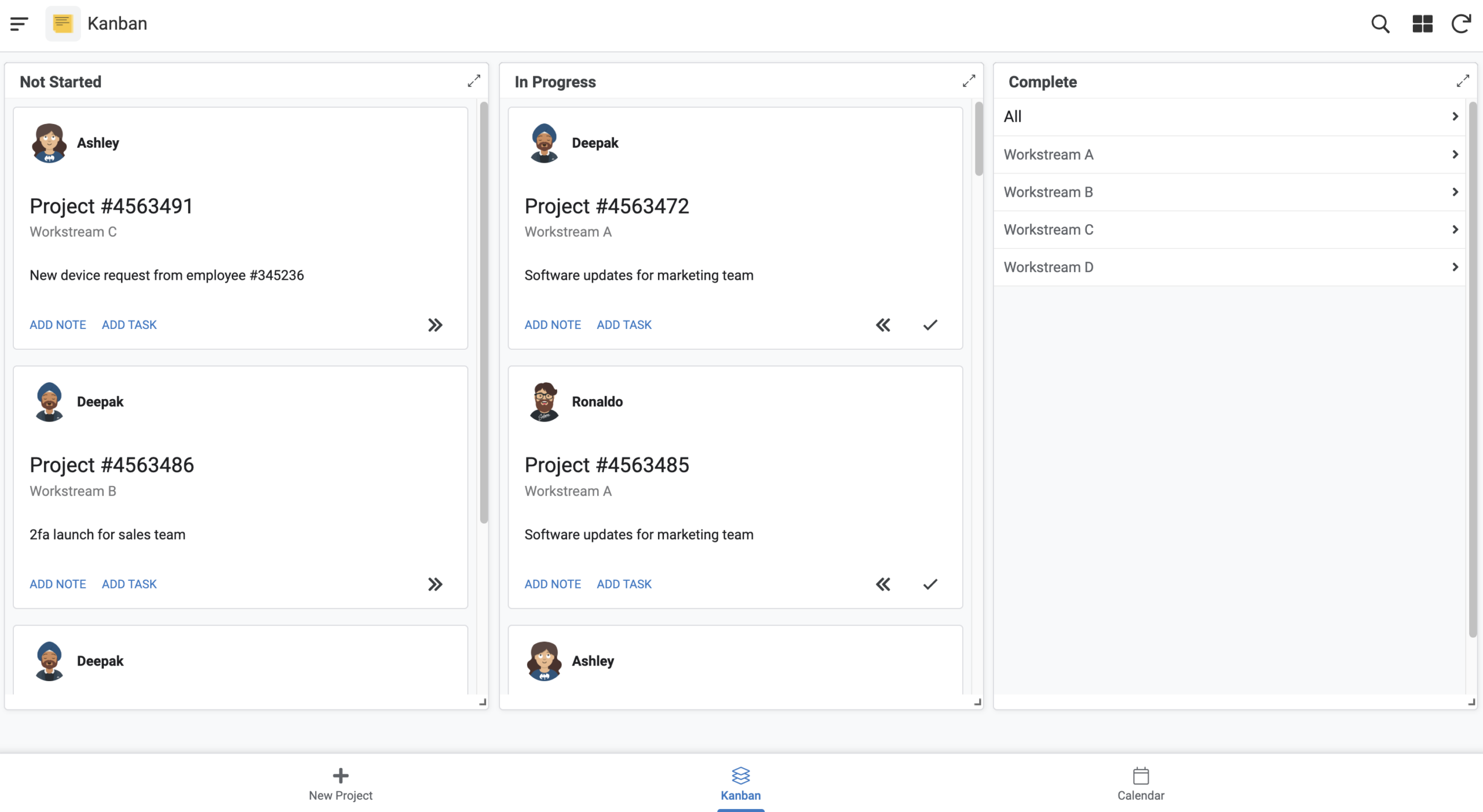
We will use the official AppSheet Kanban dashboard template as our starter.
Because we are using a template, there is zero setup required. A look at the underlying data structure and you’ll see this app has five distinct tables connecting projects to tasks and workstreams, while mapping people to specific notes. Whilst it still uses a standard Google Sheet as a data source, AppSheet allows us to use true relational data. For example, projects can have related tasks, assigned team members, and detailed histories.
Sheets canvas takes a different approach. Inside your spreadsheet, you open the Gemini side panel, enable the canvas tool, and provide an instruction like “Can you turn this data into a kanban board app?”, which you can view (readonly) here.
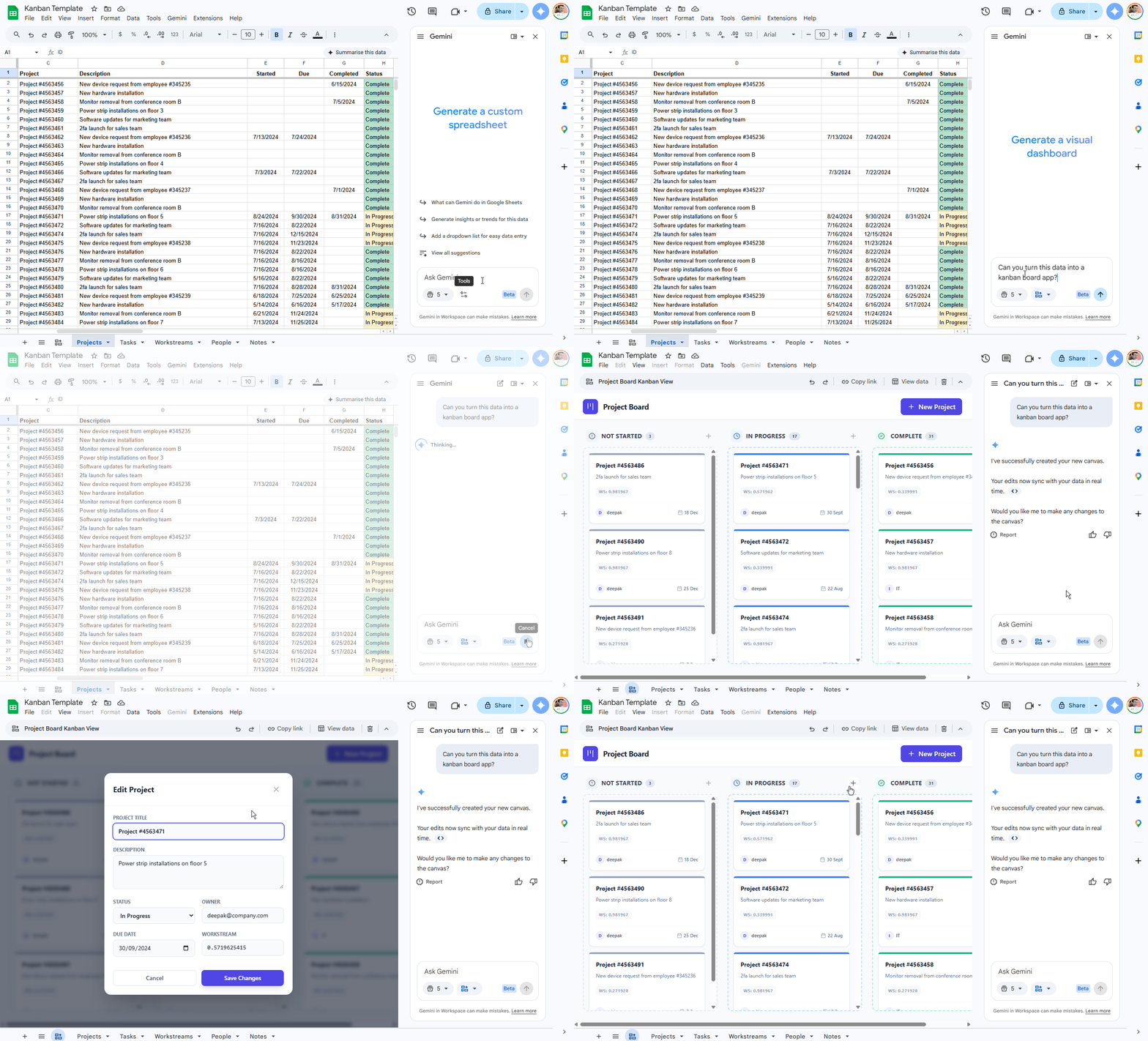
This experience is similar to the existing AppSheet ‘Gemini for App Creation’ with two key differences: in the Sheet canvas we are starting with existing data and the development process is iterative; and if you do continue to ask Gemini to update the canvas, for example, to pull sub-tasks and user avatars from other tabs, something to be aware of is that the result is a clever illusion. Because canvas only ingests the active sheet, you cannot dynamically query other tabs. This is a known current limitation:
Currently, canvases only use data from a single Sheet tab. The canvas provides a read-write interface for your spreadsheet data. If you have edit access, you can edit, delete, or add data directly within the canvas as an alternative to the grid view. If you have comment or view access, you can’t modify the canvas.
Under the Hood: Actions vs Bespoke Code
Comparing how these tools actually generate the interface provides another stark contrast. Asking Gemini to build the board generated hundreds of lines of custom React code. It imported standard web development libraries to render a bespoke interface directly over the spreadsheet cells. You are quite literally prompting an AI front-end developer to build a miniature web application that sits on top of your grid.
Data Integrity: Strict Rules vs Surface Forms
AppSheet enforces data integrity at the system level. You can configure deep initial value formulas that populate fields dynamically based on user context or timestamps. You can deploy strict validation rules that prevent a user from selecting a date in the past or entering a mismatched email address. The application simply will not save the record until the conditions are met.
Sheets canvas handles data entry through surface-level web forms. Looking at the generated code for our Kanban board reveals that the AI used standard HTML form attributes to require certain fields and injected fallback text into the React state to mimic initial values. It is functional. It works well for simple applications; however, the canvas interface does not natively inherit the data validation rules you build into the underlying spreadsheet cells. If you want strict input controls, you must explicitly prompt the AI to write custom JavaScript to catch those errors in the browser.
Security, Governance, and Shadow IT
The biggest difference between Sheets canvas and AppSheet emerges when you look at it at an enterprise level. A Sheets canvas is simply a file formatting layer. Its security model relies entirely on standard Google Drive permissions. If a user has edit access to the spreadsheet, they have edit access to the canvas.
AppSheet operates as a true enterprise platform. It lives behind a dedicated Admin Console where IT teams maintain oversight over every application built across the organisation. For teams using AppSheet Enterprise Plus licences, administrators can define governance policies that automatically enforce corporate compliance across hundreds of independent projects. An administrator might create a rule that instantly blocks deployment if a user attempts to connect an unapproved external database or fails to mandate strict domain authentication.
The Feature Comparison
To help you decide which tool fits your current project, here is a breakdown of their core capabilities.
| Feature | Sheets Canvas (Alpha) | AppSheet |
|---|---|---|
| Primary Purpose | Building custom interfaces to visualise and update single-sheet data. | Building robust business applications with a dedicated desktop mode. |
| Data Source | A single Google Sheet tab. | Multiple sources including Sheets, SQL, and external APIs. |
| Data Structure | Flat. Cannot access other tabs dynamically. AI relies on faking relationships with hardcoded static data. | Relational. |
| Data Validation | Basic HTML/React form rules. Requires custom JavaScript for complex logic. | Deep system-level validation and computed initial values. |
| Read/Write Access | Editors can edit, delete, or add data. Viewers cannot. | Granular, role-based database access. |
| Complexity Level | Low. Prompt-driven visualisations generating React code. | High. Requires structured logic and intentional design. |
| Security & Governance | Relies on standard Google Drive file permissions. | Centralised admin console with strict policy-driven enterprise governance. |
The Verdict
If you need a quick dashboard to track your team’s weekly tasks, use Sheets canvas. It is fast, intuitive, and keeps everyone working within a familiar spreadsheet environment while the AI handles the complex front-end code.
If your workflows are growing, if you need to connect multiple data sources like mapping notes and users to specific projects reliably, or if your IT department requires strict visibility over internal tools, AppSheet remains the undisputed choice.

Member of Google Developers Experts Program for Google Workspace (Google Apps Script) and interested in supporting Google Workspace Devs.