The following Google Apps Script is designed to reposition 2 columns within a Google Sheet. It is a small and simple bit of code but it was something new to me when I was collating lots of files together and appending columns at the end – which then needed to be moved.
In this example I am moving columns ‘collegename’ (E) and ‘shoesize’ (F) to the left of ‘postcode’ (D). So that ‘postcode’ will be the final column (F).
Remove a users edit access to a Google Drive file via an Apps Script Web App.
Web App code sample
The following Google Apps Script is designed to remove a person’s edit access from a Google Drive file via a Web App. The reason for using a Web App in this instance is because removing a person’s access to a file whilst they are running Apps Script code typically results in an error (or most certainly the inability to cleanly end the code). In the project I was working on prior to this step the code needs to send some automated emails before finishing with removing the person’s access.
Get all selected Ranges in a Google Sheet along with values, row and column details.
Selected ranges in a Google Sheet
The following Google Apps Script was from some learning around multiple ranges being selected/highlighted by a user in a Google Sheet. I have always worked with individual cells or continuous ranges within Sheets, but during the development of my Archive Sheet data Add-on I wanted to enhance it by allowing more rows to be acted upon in one go.
I practiced getting a few values after looping through each selected range:
Iterate through a Google Drive folder of Microsoft Excel files and convert them into individual Google Sheet files.
Bulk convert Excel files to Google Sheets
The following Google Apps Script is designed to iterate through a Google Drive folder of Microsoft Excel files and convert them all to individual Google Sheet files.
Periodically check for any changes in a given Google Drive file and receive an email notification if there are any, within your given time-frame.
Email notification of Drive file changes. Image credit: Phil Bainbridge
The following Google Apps Script is designed to periodically check for any changes that have occurred to a given Google Drive file (ie edits to it) and send an email to notify of that. It goes through the Revision (Version History) of the file and looks at the modification dates for those that match with your given timeframe, to then collect the Username & Email address of the person that made those edits for inclusion in the email.
So as an example you may have a Google Sheet where you want to setup a check every 4 hours, to then be emailed if there have been any edits to it, along with who made those edits.
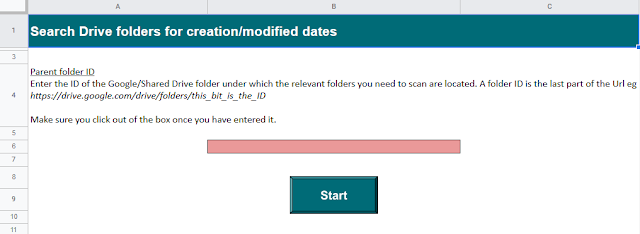
Search one level of Google Drive folders and extract creation, last updated and folder names into a Google Sheet.
Enter the Parent folder ID and search the folders within
The following Google Apps Script is designed to search through one level of Google Drive folders and extract the following information into a Google Sheet:
Google Add-on to bulk rename Google Drive files quickly and easily in a given folder. You define exactly what you want to search for in the file name and the text to replace it with. Includes instructions and demo video.
Automatically move a row of data from one Google Sheet tab to another when a tickbox is selected.
Archive a row of data by ticking a box
The following Google Apps Script is designed to move a row of data from one Google Sheet tab to another when a tickbox has been selected in a given column. The tool was developed to help colleagues with automatically archiving data that had been actioned.
The tool uses an ‘onEdit(e) simple trigger’ to constantly monitor the Google Sheet for any changes in values. Is it specifically targeted at a tickbox-column only so that it does not archive rows of data on every edit of the Google Sheet.
An Add-on to perform a Google Drive file name search from within a Google Sheet to keep the file information saved for future use.
Search Drive file names in Google Sheets
It is easy to search for the names of files within Google Drive, but what happens when there are a lot of results that you need to go through?! Scrolling continuously down the page becomes quite clunky and frustrating, so with this tool you can perform that same search in a Google Sheet but have the results collated into the Sheet also, so they are much easier to then work with.
The following Google Apps Script code is designed to create a HTML popup in a Google Sheet and pass some data directly into it so that the popup can display the information.
Display Apps Script code directly in a HTML popup
This was part of a larger project I was working on so I have stripped all of that away here and kept the bare minimum for demo purposes. I already knew how to get the HTML page to run a Function once it had loaded to then access static data from within the Google Sheet, but what was tripping me up here was if that data was coming directly from Apps Script itself – such as an error message from a try/catch.